Signing in
There is no password to set or remember. You sign in with a code sent to your email address, and the portal keeps you signed in on that device afterwards.
Your address
Section titled “Your address”Each tournament has its own portal address:
https://your-tournament.scored-page.com/manageYour organizer sends you this link when they add you as a manager. Bookmark it - or better, install it as an app.
Signing in
Section titled “Signing in”-
Open your tournament’s portal address.
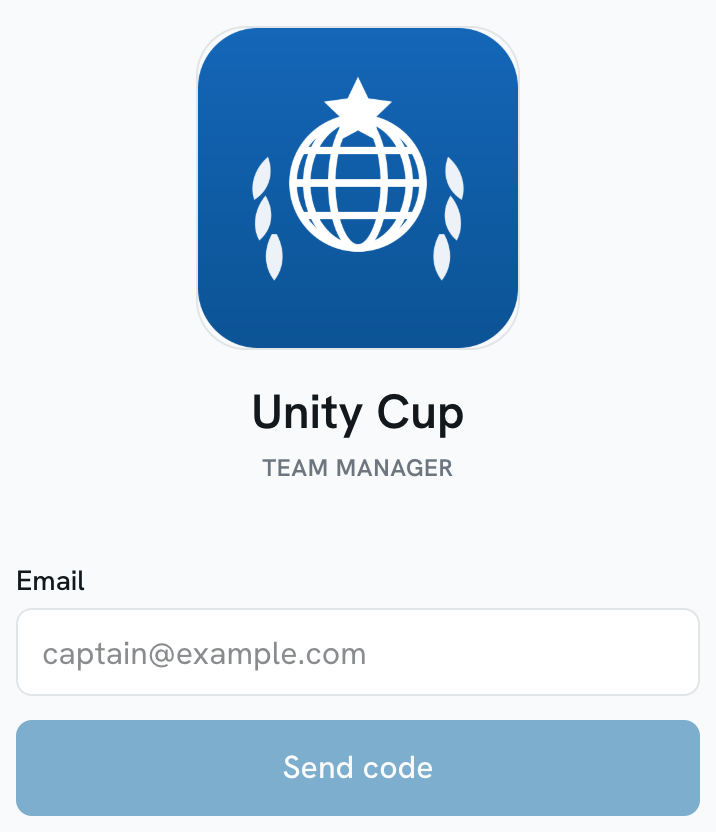
You will see the tournament’s own logo and name above the form, so you can tell at a glance that you are in the right place.
-
Enter the email address your organizer invited.
It has to be that exact address. A code sent to any other address will not match a manager, so nothing will arrive.
-
Tap Send code, then check your email.
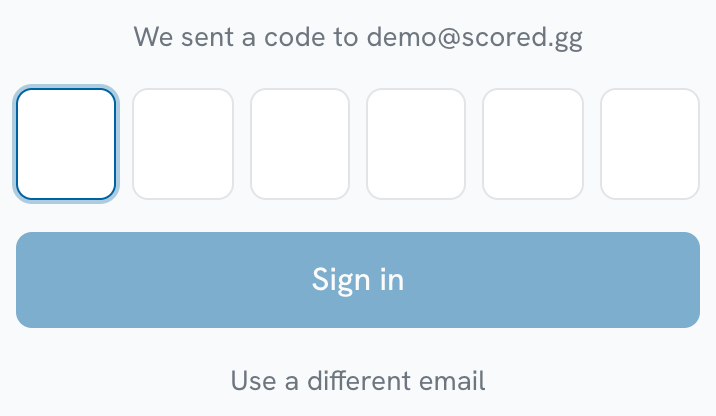
The code is six digits and arrives within a few seconds.
-
Type the code and tap Sign in.
You will land on Home, with your delegation’s name in the header.
If the code is rejected
Section titled “If the code is rejected”Codes expire, and each one only works once. If you see “That code is wrong or has expired. Get a new one below.”, tap Use a different email to go back, then ask for a fresh code. Asking for a new code cancels the old one, so always use the newest email.
Install it on your phone
Section titled “Install it on your phone”The portal can be installed to your home screen, which gets you a real app icon, a full screen without the browser chrome, and push notifications for match reminders.
Once installed, the icon is your tournament’s own - so if you manage teams at more than one tournament, you can install each and tell them apart.
Staying signed in
Section titled “Staying signed in”The portal keeps you signed in on that device, so you will not have to repeat this before every match. You will need a fresh code if you sign out, clear your browser data, or switch to a different device.