Matches & results
Matches in the tournament sidebar is every match in one list. It is where you spend the event: checking what is ready, entering results, correcting the ones that are wrong, and answering teams who think a score is off.
Matches appear here once you have generated them from your structure. Where each one is played and when is set on the Schedule.
How the list is grouped
Section titled “How the list is grouped”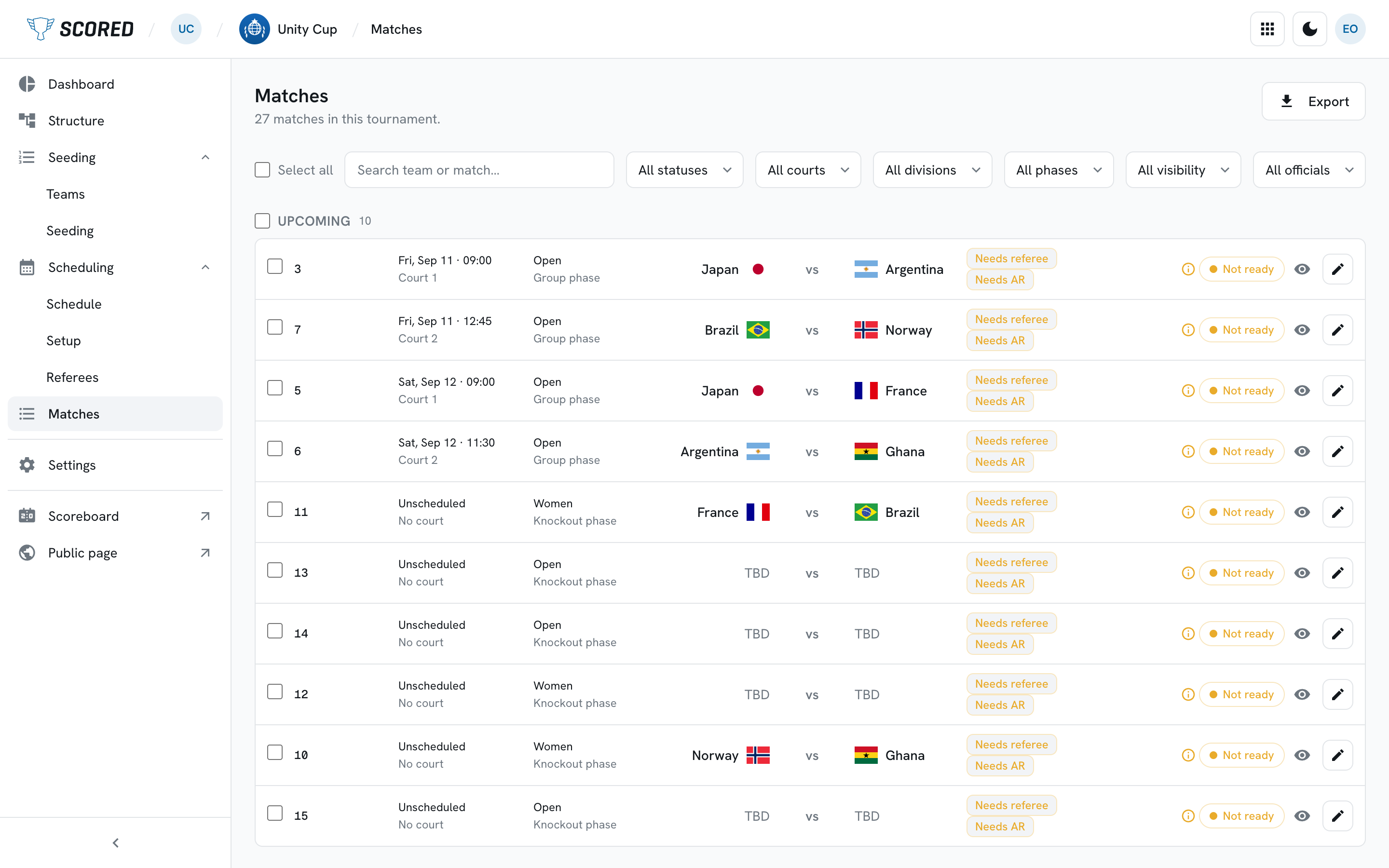
The list is grouped by what is happening, in this order:
- In progress - matches under way
- Upcoming - everything not yet played, soonest first, with unscheduled matches at the bottom
- Finished - most recent result first
Each section is titled with its own count, and empty sections do not appear.
Every row carries a status:
| Status | What it means |
|---|---|
| Not ready | Something is missing before this match can be played |
| Scheduled | Ready to go |
| Live | In progress |
| Final | Played, with a score recorded |
Beside a Not ready match is an information icon. Hover it, tap it, or move to it with the keyboard and it lists exactly what is missing: Not scheduled (no court or no time yet), Referees 1/2, or No assistant referee. “Not scheduled” is a link straight into the Schedule on that match’s day.
Matches short of officials also carry a Needs referee or Needs AR chip that takes you to the same place.
Finding a match
Section titled “Finding a match”The controls above the list narrow it down. They all work together.
| Control | What it does |
|---|---|
| Search | Matches a match reference, or either team’s name |
| Status | In progress, Upcoming or Finished |
| Court | One court |
| Division | One division |
| Phase | One phase, when your structure has them |
| Visibility | Visible or hidden on your public page |
| Officials | Missing officials shows only matches short of a referee or assistant |
| Disputes | Open disputes shows only matches a team has challenged |
The last two only appear when there is something to narrow: no disputes, no disputes filter.
Editing a match
Section titled “Editing a match”Click the pencil at the end of a row to open the match. On a tablet or a phone, tap the row or the card itself.
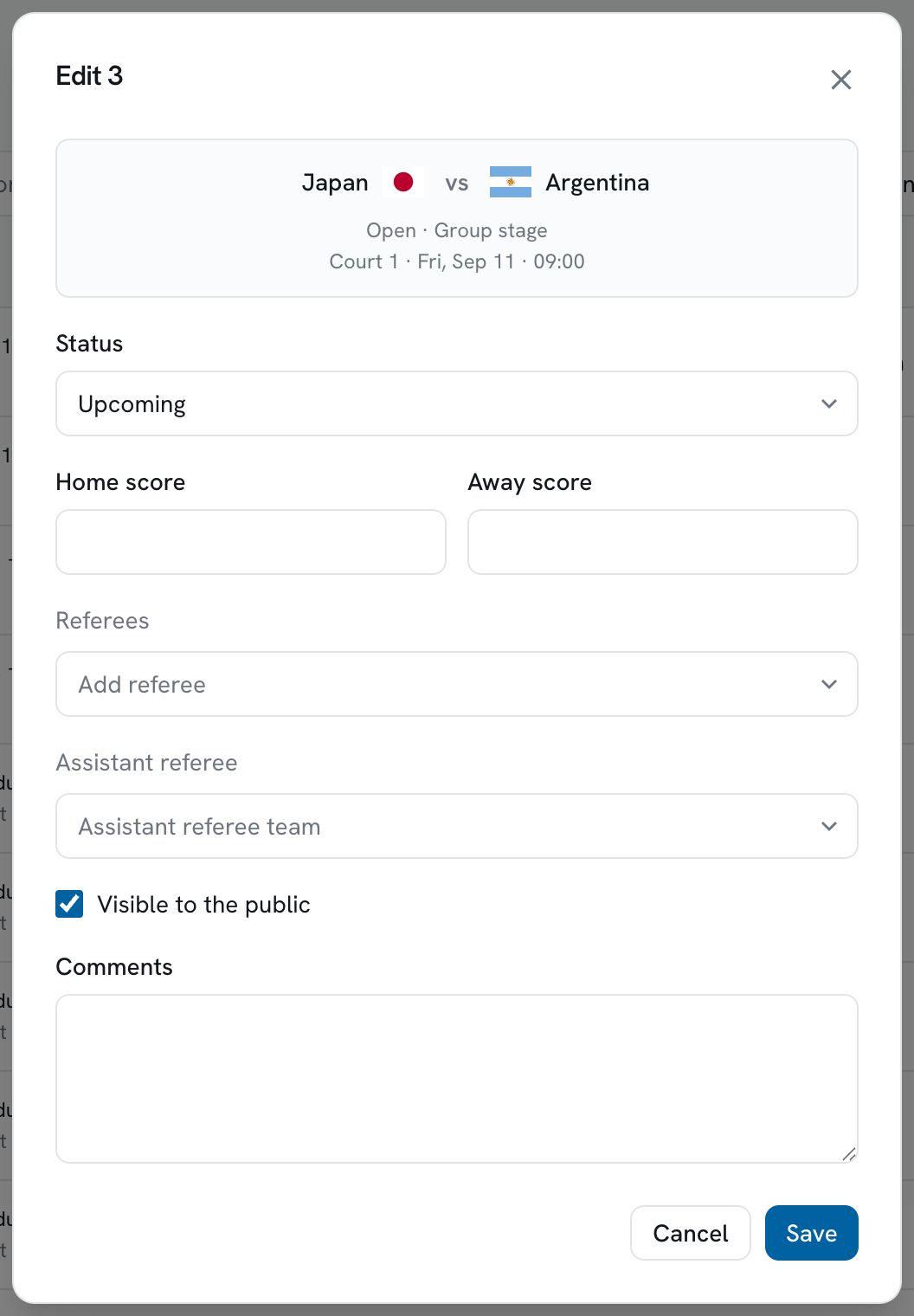
The top of the panel shows the matchup, division, stage, court and time. Those are not edited here - the teams come from your structure and seeding, and the court and time from the Schedule.
Below that you can change:
| Field | Notes |
|---|---|
| Status | Upcoming, In progress or Finished |
| Home score and Away score | Leave blank for no score |
| Referees | Remove one with the x on its pill, or add one from Add referee |
| Assistant referee | One team, searchable and clearable |
| Visible to the public | Whether the match appears on your public page |
| Comments | Your own note about the match |
Click Save and everything you changed is saved together. Cancel, the close button, and clicking outside all discard your changes.
Referees and assistant referees only appear if your plan includes them and your tournament uses them. Settings > Refereeing is where you turn them on.
Recording and correcting a result
Section titled “Recording and correcting a result”Scores are entered the same way whether the match has just finished or you are fixing one from this morning.
-
Open the match.
-
Enter the home and away score.
-
Set the status to Finished.
-
Click Save.
The result reaches the standings and every team manager’s portal straight away, and your public page too as long as the match is visible. There is no separate publish step.
What the public sees
Section titled “What the public sees”Each match is either visible or hidden on your public page - the site
spectators follow at [your-name].scored-page.com. The eye at the end of a row
tells you which: a crossed-out amber eye means hidden.
Hiding is useful for matches you are not ready to show - a draft round, a placeholder fixture, or a division that is not announced yet.
To change one match, use Visible to the public in the edit panel. To change many at once:
-
Tick the matches you want.
The checkbox beside a section heading takes that whole section. Select all above the list takes everything the filters are currently showing.
-
Click Mark visible or Mark hidden in the bar at the bottom of the screen.
It tells you how many are selected, and Clear drops the selection.
A quick way to publish a round: filter to it, click Select all, then Mark visible.
Exporting the results
Section titled “Exporting the results”Export beside the heading downloads every result as a spreadsheet, for a report afterwards or just your own records.
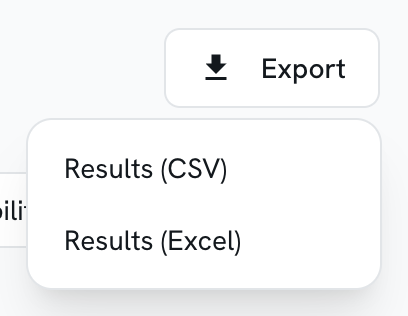
Pick Results (CSV) or Results (Excel). Both hold one row per match: its reference, division and stage, when and where it was played, both teams and their scores, who refereed it, and any comments you left. Columns that do not apply to your tournament are left out rather than sitting empty.
Exports come with the Small plan. Below it the rows stay in the menu with a lock beside them and take you to the upgrade instead of downloading. Like the rest of the page’s toolbar, Export is a laptop and tablet control.
Following what the teams have done
Section titled “Following what the teams have done”When team management is on, matches carry a small cluster of icons showing what the team managers have done: two checks for result confirmations, a list icon with a dot per side for submitted lineups, and a warning count when a dispute is open.
Click the cluster to open Captain activity for that match. It shows:
- Result confirmation - which side confirmed, who confirmed it, and when
- Disputes - every dispute filed, with its reason, notes, the delegation that filed it, and your recorded answer
- Lineups - the exact lineup each side submitted, with numbers and roles
Everything except your dispute answer is read-only. It is the record of what was declared, which is what you want when two teams disagree about who played.
Answering a dispute
Section titled “Answering a dispute”A dispute is a team formally challenging a result. They file it from their portal - see Disputes for what they see. Filing one does not change the result: it stands until you rule on it.
Find them with the Open disputes filter, then open the match’s captain activity.
-
Read the dispute.
The reason, their notes, which delegation filed it, and when.
-
Click Respond.
On a dispute you have already answered, the button reads Edit response instead.
-
Write your response.
The team that filed the dispute reads this word for word, so say what you checked and what happens now.
-
Pick an outcome.
Outcome Use it when Leave open You are answering but still looking into it Resolved You agreed with them and put it right Rejected You looked and the result stands -
Click Save response.
If the correct result is different, fix the score in the edit panel as well. Answering a dispute does not change the score by itself.
Once a dispute is resolved or rejected you can still edit what you wrote - the outcome stays as you set it unless you change it. You cannot re-open a settled dispute.