Your organization
Everything you run on Scored sits inside an organization: your tournaments, the people who help you run them, and your settings. Most organizers need only one - your club, your federation, or the group that puts the event on.
Creating an organization
Section titled “Creating an organization”If you have just signed up, the welcome screens create your first organization with you - see Welcome and setup guide. To create another one, open Create organization on the Organizations page.
-
Enter your organization name.
This is the name your members and your team managers see, so use the name people know you by.
-
Check the subdomain.
Scored suggests one from the name. It is used in links and public addresses, and it takes lowercase letters, numbers and dashes only. Change it if you like - if someone else already has it, the form tells you.
-
Add a logo, if you have one.
Optional. Pick an image and crop it to a square. You can add or change it later in Settings.
-
Click Create organization.
You land on your organization’s home screen, ready to create your first tournament.
Where to find your organization
Section titled “Where to find your organization”Your organization’s home screen is a set of tiles, one for each part of Scored you can use:
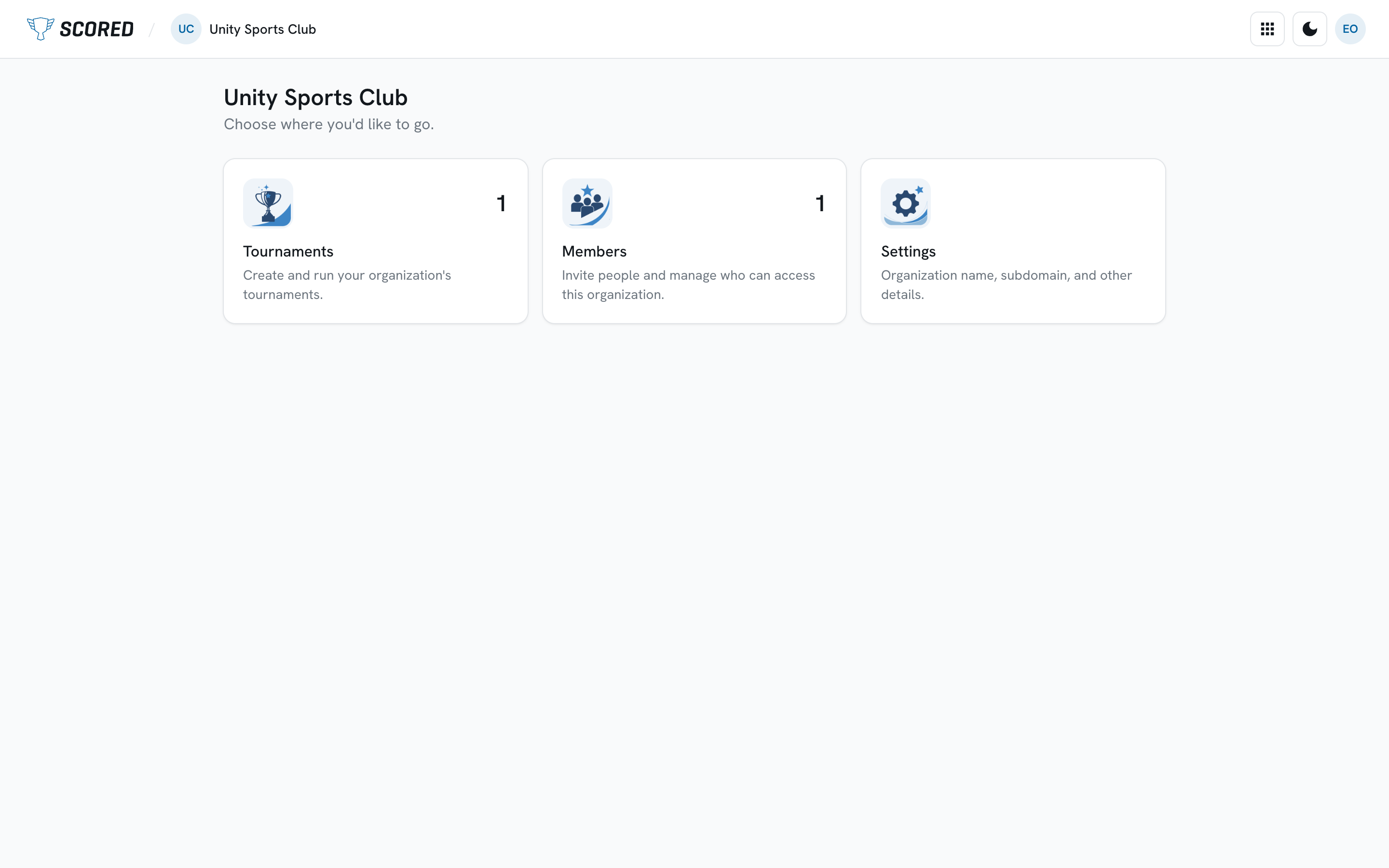
- Tournaments - create and run your organization’s tournaments.
- Members - invite people and manage who can get into this organization.
- Settings - your name, subdomain, logo and other details.
Which tiles you see depends on what your organization has turned on and on what you are allowed to do. Someone who only referees sees a Referee card here instead, which takes them to their match assignments.
To move between organizations, or to reach the full list, open your profile picture in the top right and choose an organization, or More organizations….
Members
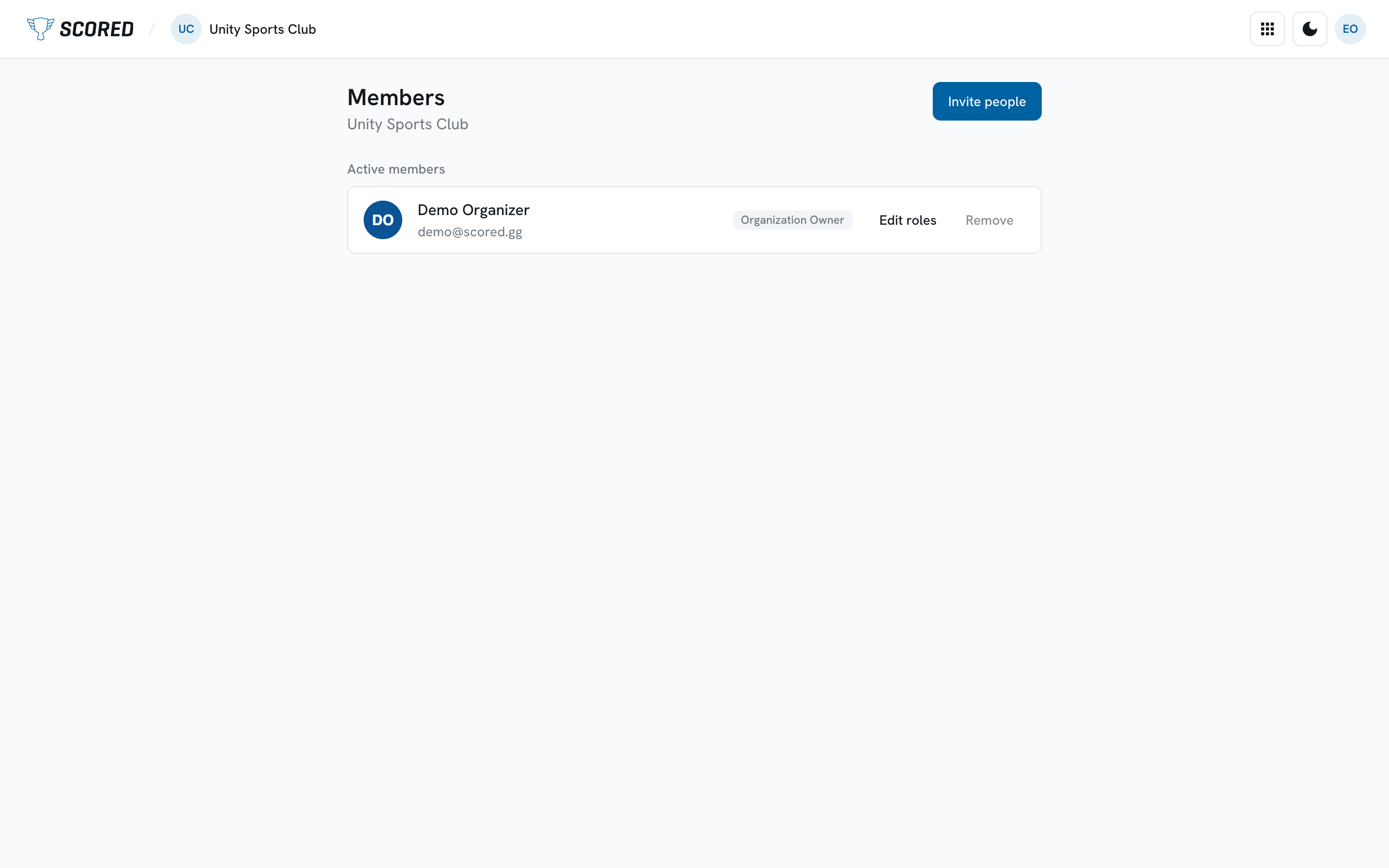
Section titled “Members”Members are the people who help you run your events: co-organizers, admins, and anyone who needs to get into the organization. Team managers are not organization members - they are added to a tournament and work in the Team Manager portal instead.
Open Members from your organization’s home screen.
Inviting someone
Section titled “Inviting someone”-
Click Invite people.
-
Enter their email address.
-
Pick a role.
The description under the picker says what the role can do.
Role What it can do Owner Full control of the organization Admin Manage members, run tournaments, and pay for plans Tournament organizer Run all of the organization’s tournaments, and pay for plans Member Read-only access to the organization -
Click Send invite.
The invite appears under Pending invites with the date it was sent. Once the person accepts, they move up into Active members.
Changing what someone can do
Section titled “Changing what someone can do”Click Edit roles beside a member and tick the roles they should hold. A member can hold more than one.
An organization always keeps at least one owner, so if there is only one owner left, their Owner role is locked and their Remove is turned off.
Removing someone
Section titled “Removing someone”Click Remove beside the member, then Remove member. That takes away their access to the organization. You can invite them again later.
Canceling an invite
Section titled “Canceling an invite”Click Revoke beside a pending invite. The link stops working.
Accepting an invite
Section titled “Accepting an invite”The email contains a link to a page that shows who invited you, to which organization, and as what.
The page works before you sign in. If you are not signed in, you get Sign in and Sign up buttons that bring you back here afterwards. Once you are signed in, click Accept invite and you land on the organization.
Two things you may see instead:
- “You’ve already accepted this invite.” You are in. Click Continue.
- “This invite doesn’t work anymore.” The link was revoked or has expired. Ask whoever invited you to send a new one.
Settings
Section titled “Settings”Open Settings from your organization’s home screen.
Name and subdomain
Section titled “Name and subdomain”Change either one and click Save changes. If the subdomain you want is taken, the form says so and nothing is saved.
The Organization logo card holds the image people see beside your name. Pick a file, crop it square and click Save logo. Remove logo clears it.
Archiving an organization
Section titled “Archiving an organization”Archiving takes the organization out of your list. It is at the bottom of Settings, under Danger zone, and only owners see it.
Click Archive organization, type the organization name to confirm, then confirm again. You go back to your organizations list. A Scored administrator can restore it if you change your mind, so email support@scored.gg rather than starting over.
What to do next
Section titled “What to do next”Create your first tournament: see Create a tournament.