Schedule
Scheduling is where your games get a court and a time. It has three pages in the sidebar under Scheduling: Schedule (the calendar), Setup (courts and availability), and Referees (your referee roster).
Do Setup first. The calendar draws its columns from your courts and its rows from your hours, so there is nothing to place games on until both exist. If you open the calendar before then, Scored sends you to Setup.
First run: courts and availability
Section titled “First run: courts and availability”Courts
Section titled “Courts”Setup > Courts is the list of courts, pitches, or tables you play on.
-
Click Add court.
-
Name it.
Whatever you call it out loud - Center Court, Pitch 2, Table A.
-
Leave the controller code blank.
Scored assigns one for you. The code is what a referee uses to open the scoreboard for that court, so you only set it by hand if you already have codes printed on signs.
-
Click Add court to save.
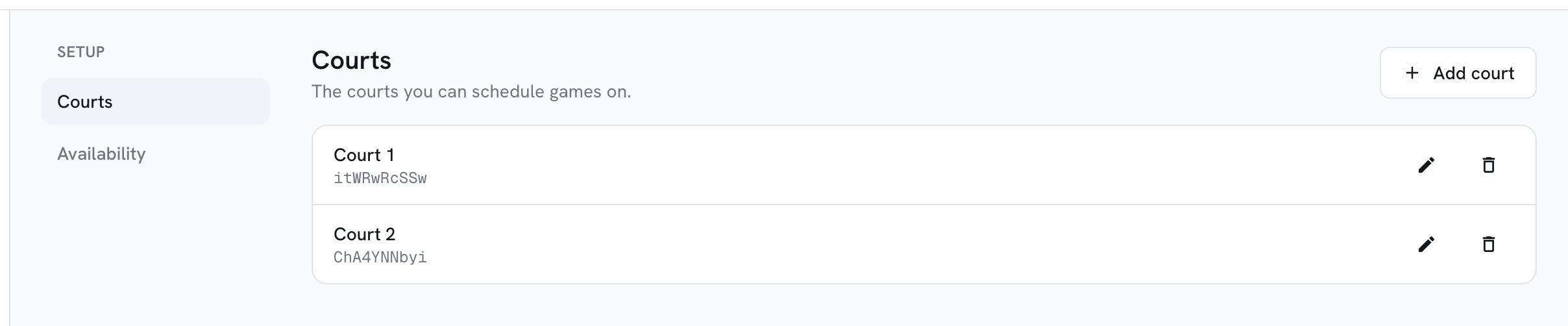
Use the pencil to rename a court and the bin to delete one. Deleting a court leaves any games on it needing a new one, and it cannot be undone.
Availability
Section titled “Availability”Setup > Availability is when each day runs.
The first time you open it, Scored fills in defaults from your tournament dates and tells you they are not saved yet. Check them, then click Save availability.
One day is on screen at a time. The pills across the top switch between days, and Add day adds another date inside your tournament dates.
For each day you set:
| Field | What it does |
|---|---|
| Opens | The first time a game can start |
| Closes | The last time a game can run to |
| Match length (min) | How long one slot is, which sets the height of a row on the calendar |
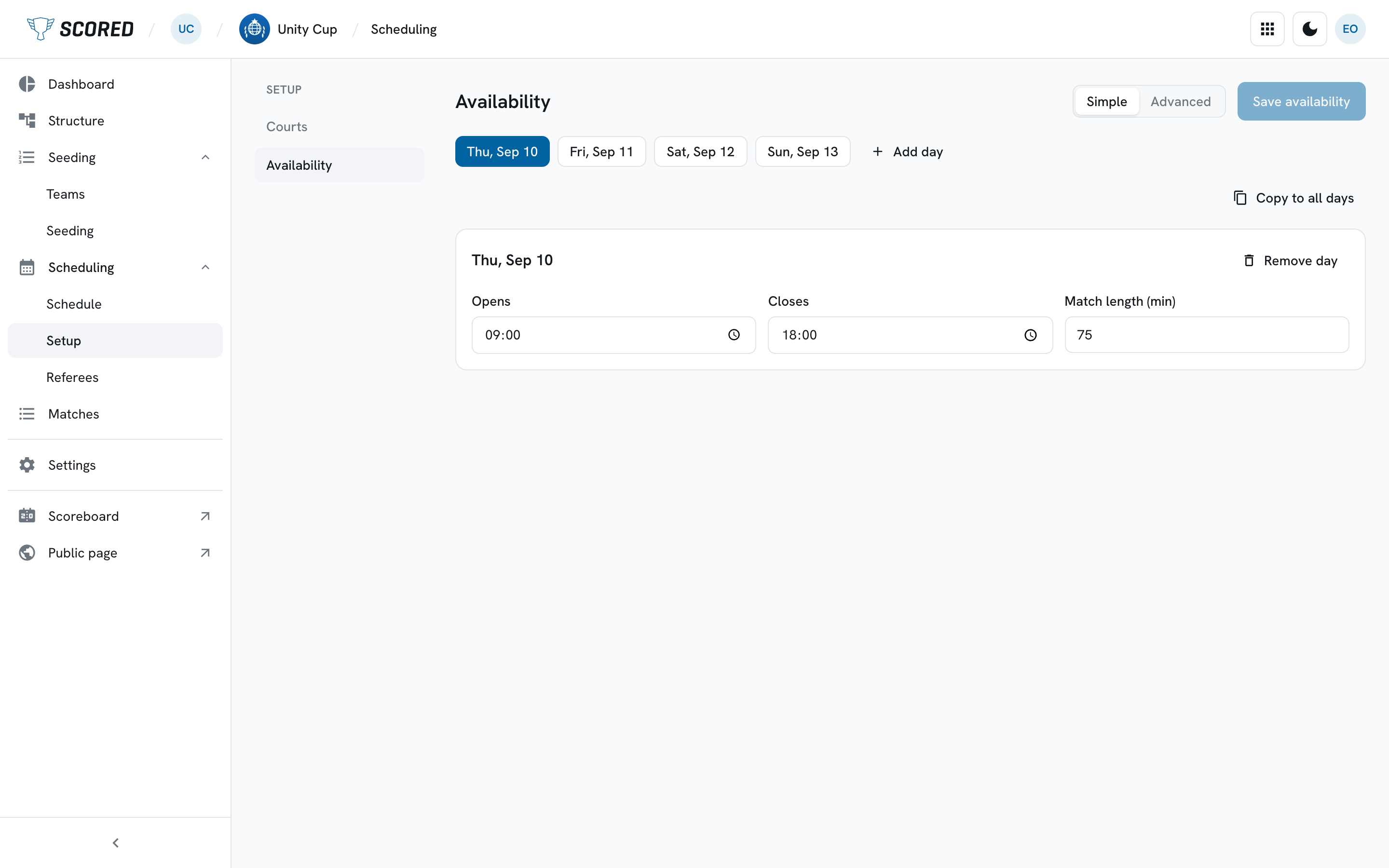
If your days are alike, set one up and click Copy to all days.
The calendar
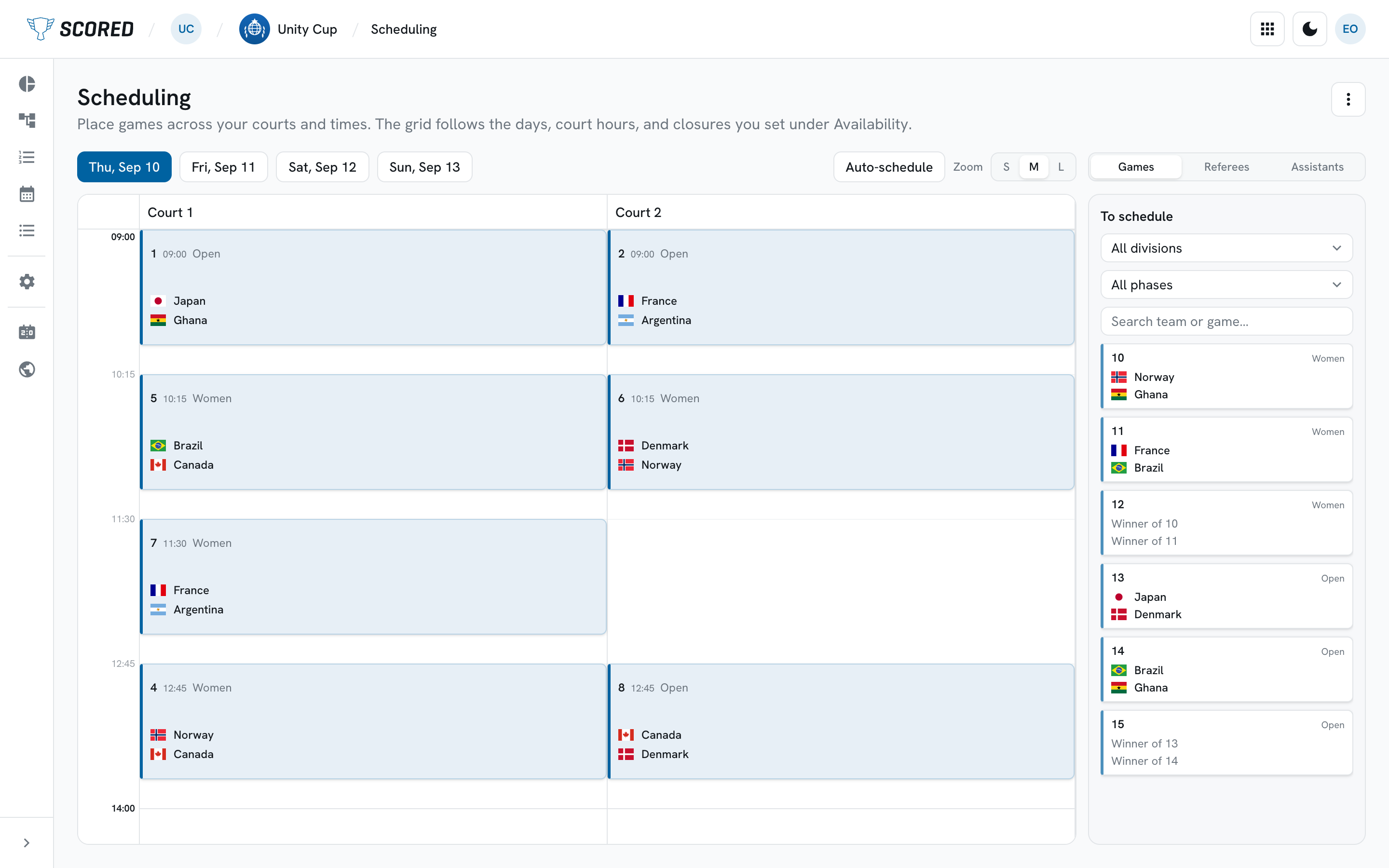
Section titled “The calendar”Scheduling > Schedule is a grid: one column per court, time running down the side. Every game you have created in Structure shows up here, either placed on the grid or waiting in the To schedule list on the right.
Picking a day
Section titled “Picking a day”The buttons along the top left are your tournament days. Click one to switch. The calendar shows a single day at a time.
Zoom next to them makes the rows taller or shorter when a packed day is hard to read.
Placing a game
Section titled “Placing a game”Drag a card from the To schedule list onto the court and time you want. Drop a placed game somewhere else to move it, and drop it back on that list to take it off the calendar.
The list has filters for division and phase and a search box, which helps when there are more games than fit on screen.
Every game goes on the calendar this way, so an emptying To schedule list is how you know the day is fully planned.
When a spot has a conflict
Section titled “When a spot has a conflict”Scored checks every game against the ones around it, both as you drag and once a game is placed. It looks for four things:
| What it spots | Why it matters |
|---|---|
| Court overlap | Two games on the same court at the same time |
| Referee double-booked | One referee on two games that overlap |
| Team assisting while playing | A team given a duty on a game it is playing in |
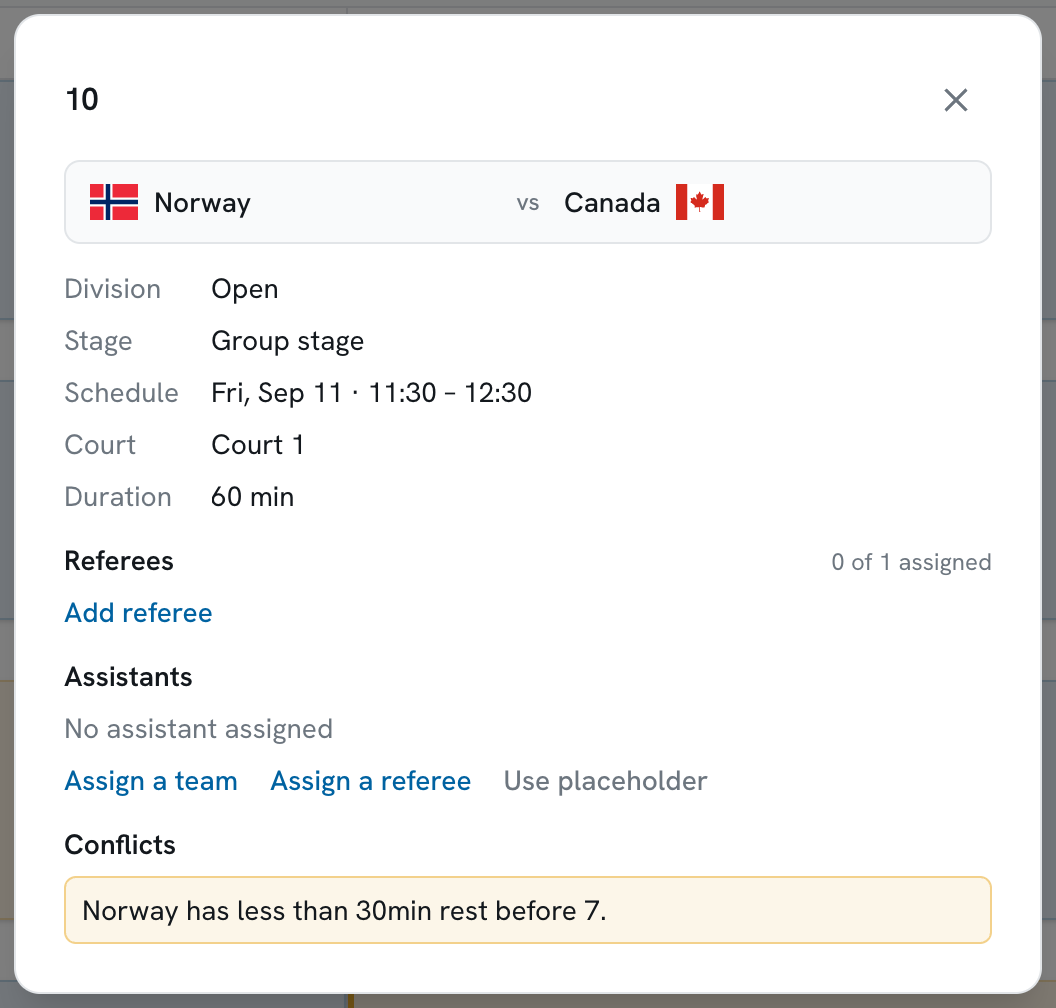
| Too little rest | A team with under 30 minutes between two of its games |
The first three are clashes: something cannot happen as planned. A game with one of those carries a red edge on the calendar. Too little rest is a warning rather than a clash - the day works, it is just hard on that team - so it shows amber.
Open a flagged game to read what is wrong. It names the team and the other game, so you know what to move:
If a drop would cause any of these, the game snaps back and a banner says why. You can Cancel, or click Place anyway if you know something the calendar does not - a team happy to play back to back, a referee who has agreed to it.
Seeing referee cover
Section titled “Seeing referee cover”The Games / Referees / Assistants switch at the top right changes what the blocks emphasize. Every game stays on screen in all three - Referees and Assistants just bring officiating to the front, and they put the officials you can assign in the list on the right.
Auto-schedule
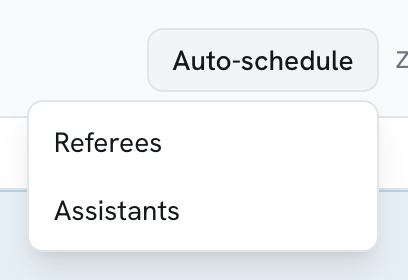
Section titled “Auto-schedule”Assigning officials one game at a time gets slow, so Auto-schedule at the top right does a whole tournament’s worth at once. Pick Referees or Assistants.
-
Pick what to assign.
Referees comes with the Small plan. Assistants appears when your plan includes it and your tournament uses assistant referees, which you turn on under Settings > Refereeing.
-
Read the plan.
Nothing changes yet. Scored shows what it intends as faded blocks on the grid, with a summary above: how many assignments it made, any conflicts it would cause, and anything it could not cover.
-
Click Apply schedule, or Discard.
Apply writes the assignments. Discard throws the plan away and leaves the calendar exactly as it was.
It works from what you already have, so build your referee roster under Scheduling > Referees first - there is nothing to assign from until people are on it. Anything it could not cover stays on the summary rather than disappearing quietly, so you can fill those in by hand.
Opening a game
Section titled “Opening a game”Click any block to see its details: the two teams, its time and court, who is refereeing, and any conflicts on it. Referee and assistant assignments are made here too.
To change the score, the status, or whether the public can see it, use the Matches page instead.
Clearing out games you will not play
Section titled “Clearing out games you will not play”The ⋯ menu at the top right of the page holds two rare actions:
- Delete unscheduled matches - removes games still waiting to be placed.
- Restore deleted matches - puts them back.
Who sees the schedule
Section titled “Who sees the schedule”You do not publish the schedule separately. Once a game has a court and a time:
- Team managers see it in the portal, on their Schedule and on the match itself.
- Spectators see it on your public page at
[your-name].scored-page.com, under Matches.
A game only reaches the public page while it is marked visible. That switch is per match on the Matches page, which is how you keep a draft day to yourself until you are happy with it.