Match day
Everything for a single fixture lives on one screen: the match itself, your lineup for it, and - once it has been played - the result to confirm or challenge.
Open it by tapping a card on Home or on your Schedule.
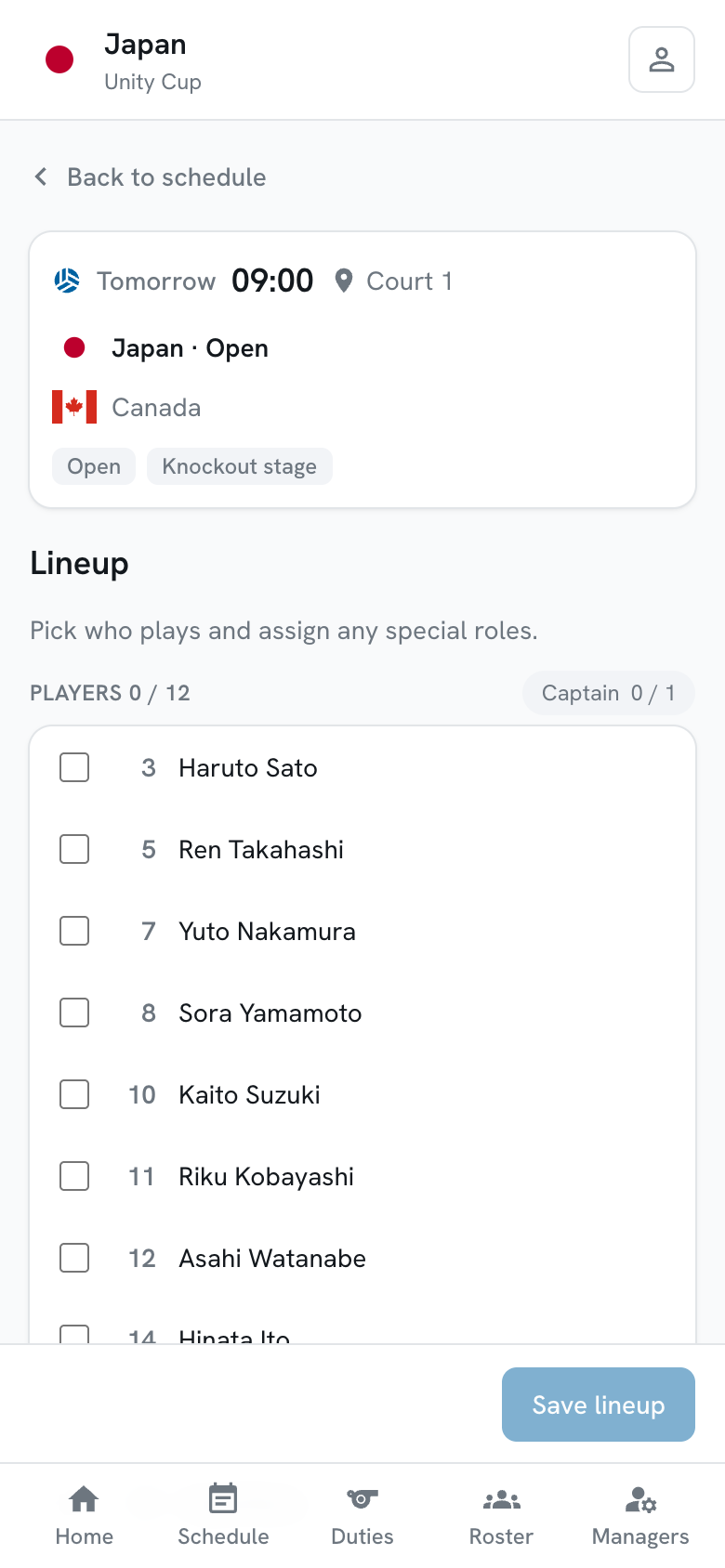
Submitting a lineup
Section titled “Submitting a lineup”The lineup is who plays and who staffs the match. You can edit it right up until the match starts.
-
Tick everyone who is playing.
Players are listed with their shirt numbers, staff below them. The count in each heading -
7 / 12- is how many you have picked against the maximum allowed for a single match.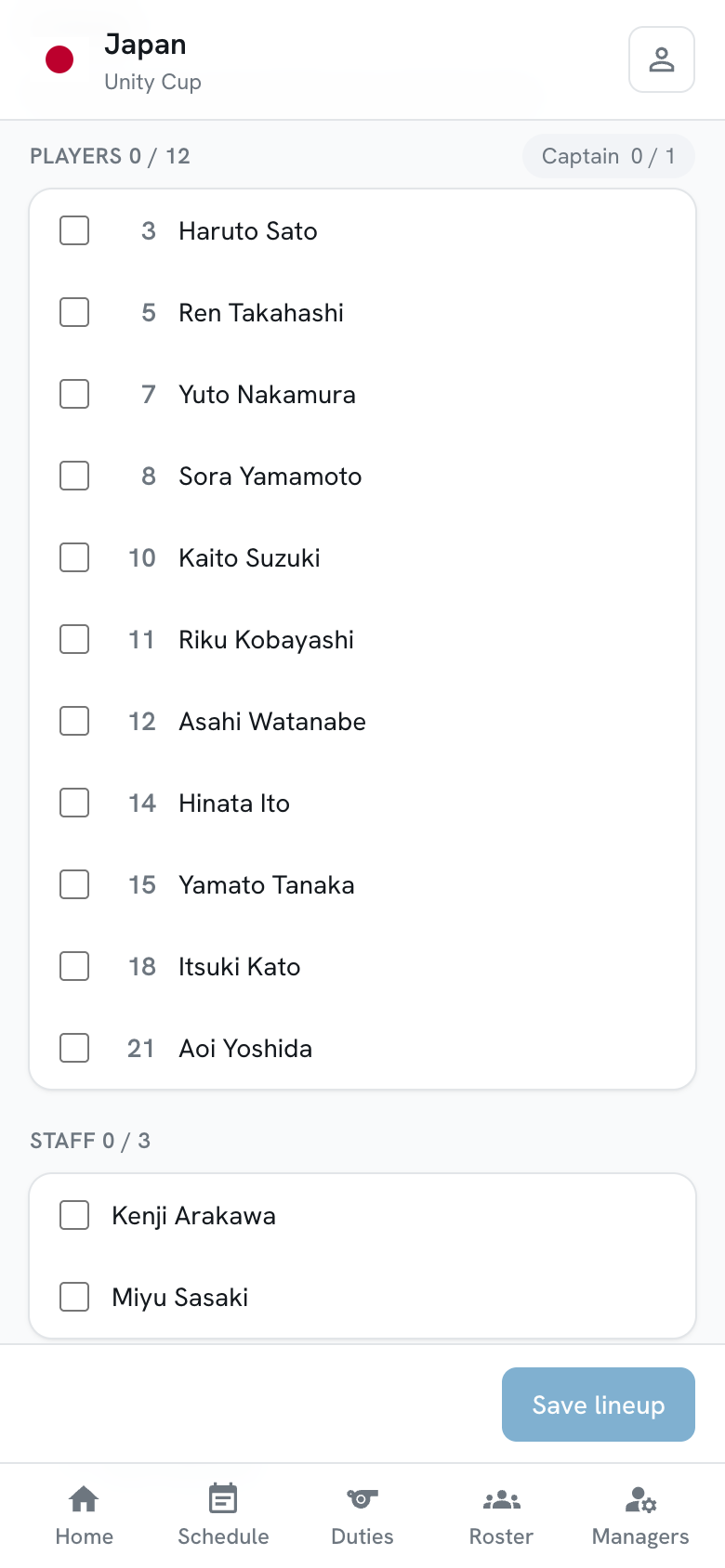
-
Assign any special roles.
Depending on the sport, a player may need to be marked as captain, libero, goalkeeper and so on. Tap + Role beside a player to choose one.
Where a sport has only a single role, the pill is a straight toggle rather than a menu - tap it to assign, tap again to remove.

-
Save the lineup.
The Save button sits at the bottom of the screen and stays within reach as you scroll. You will get a confirmation once it lands.
Role limits
Section titled “Role limits”Some roles have a limit on how many people can hold them in one match - one captain, one goalkeeper. Each role shows its own counter, and once it is full you cannot assign it to anyone else without freeing it up first.
Save is blocked while any limit is exceeded, so a lineup that would be turned away never gets submitted in the first place.
Roles for people who are not on your roster
Section titled “Roles for people who are not on your roster”Some sports name people on the match sheet who are not squad members at all - Dodgeball retrievers, for instance. These get their own section where you type names directly. They are not roster entries, they do not need to be added on the Roster tab, and they do not count against your squad limits.
Someone missing from the list
Section titled “Someone missing from the list”If a player you expected is not there, it is one of these:
- They are not on this team. Add them on the Roster tab - being in your delegation is not enough, they have to be on the team playing the match.
- They are staff who have not been ticked for this team. See Staff.
- They are not eligible for this division. Ask your organizer.
After the match starts
Section titled “After the match starts”Once the match is under way the lineup locks and becomes a read-only record of who you named. It shows exactly the list you submitted, so it stays useful as evidence of what was declared.
If you need a change after that point, talk to your organizer.
Confirming a result
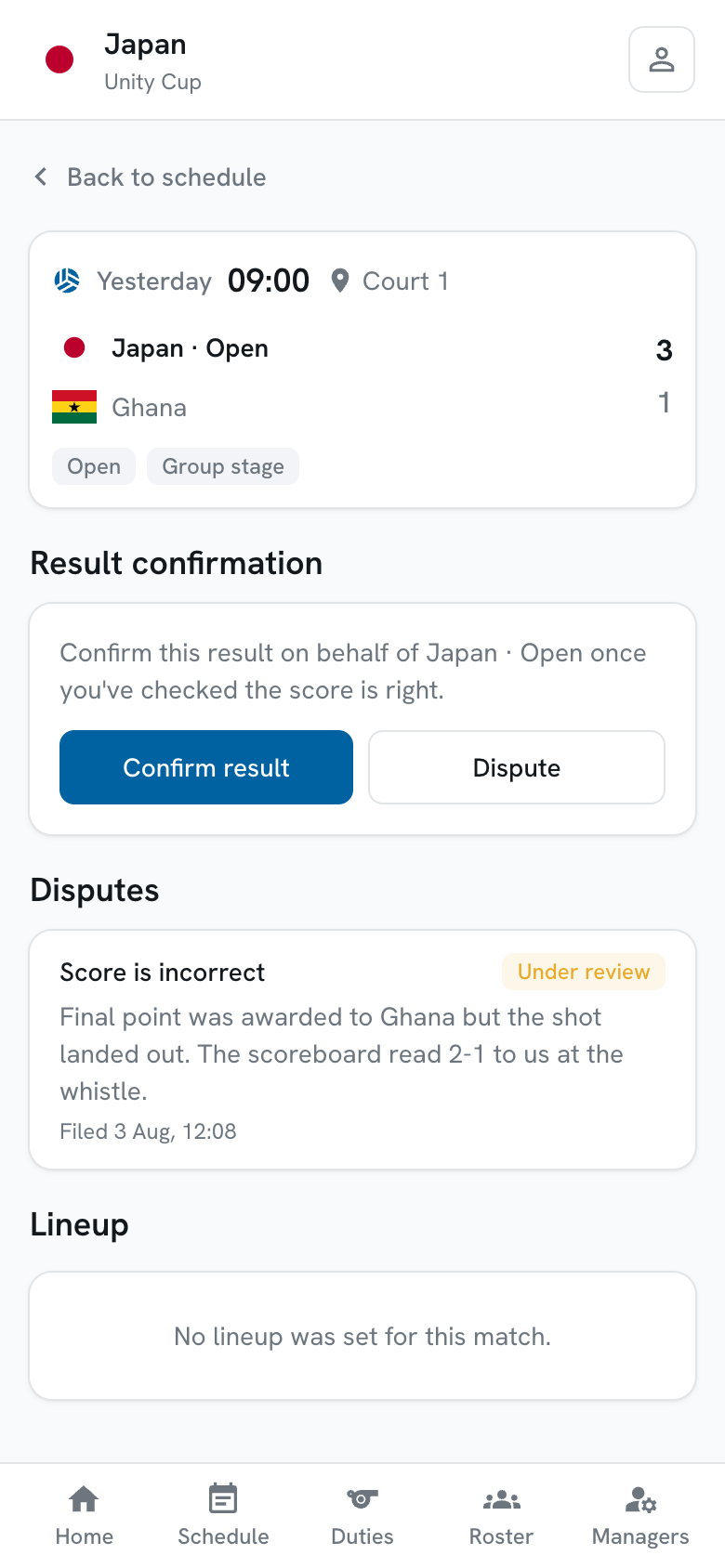
Section titled “Confirming a result”Once the referee or organizer enters the score, a Result confirmation panel appears above the lineup.
-
Check the score is right.
-
Tap Confirm result if it is.
The panel records that you confirmed it, and when.
-
Tap Dispute if it is not.
See Disputes for what happens next.
Confirming is how the organizer knows both sides agree. Some tournaments treat an unconfirmed result as provisional, so it is worth doing promptly rather than at the end of the day.