Add your scoreboard to OBS
Your stream can carry the same score the referee is entering on the court. The overlay is a web page, so OBS takes it as a browser source: paste one address, size it once, and it follows the match from then on. Nothing to export, nothing to retype between points.
This page is the OBS walkthrough. Scoreboard & broadcast covers the rest of the scoreboard, including the venue screen and the code you hand a referee. If you want to see the panel moving before you set anything up, there is a running demo of it on www.scored.gg/broadcast.
Before you start
Section titled “Before you start”- A plan with the scoreboard. The scoreboard and the overlay come with the Small plan and up. On Free, the scoreboard page tells you it is not part of the tournament’s plan - see Plans & billing.
- At least one court. The overlay belongs to a court, not to the tournament, so a court has to exist before there is an address to copy. Schedule covers adding them.
- OBS on the machine that streams. Any recent version. There is no plugin to install and nothing to sign into.
Get the overlay address
Section titled “Get the overlay address”-
Open your scoreboard site.
It sits on the same subdomain as your public page:
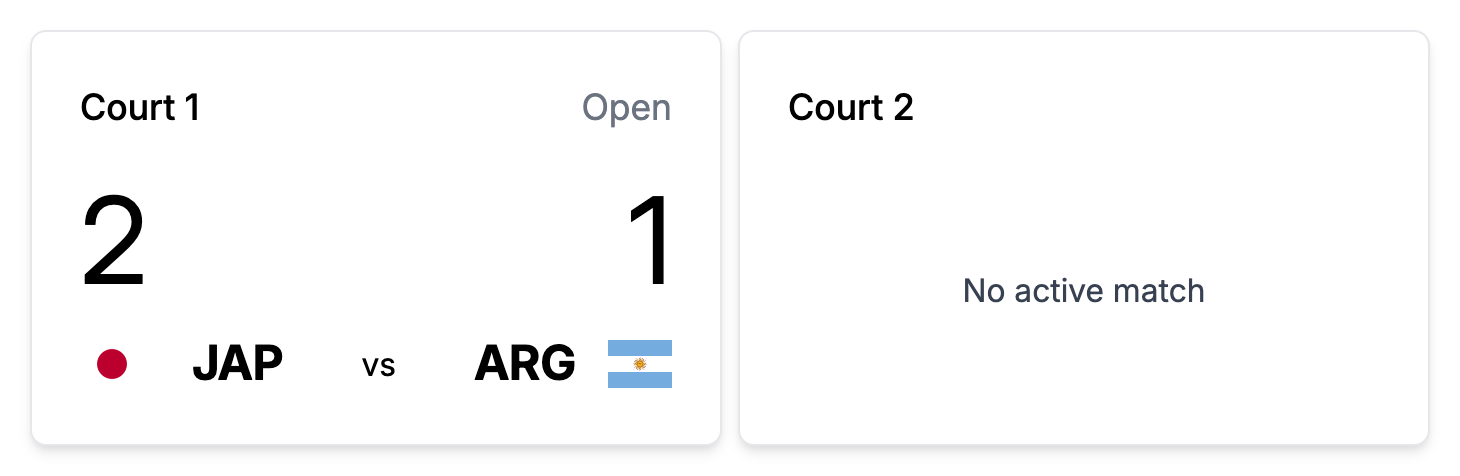
https://your-tournament.scored-board.comIt opens on your courts, each card named for its court, with the match on it now.
-
Open the court you are streaming.
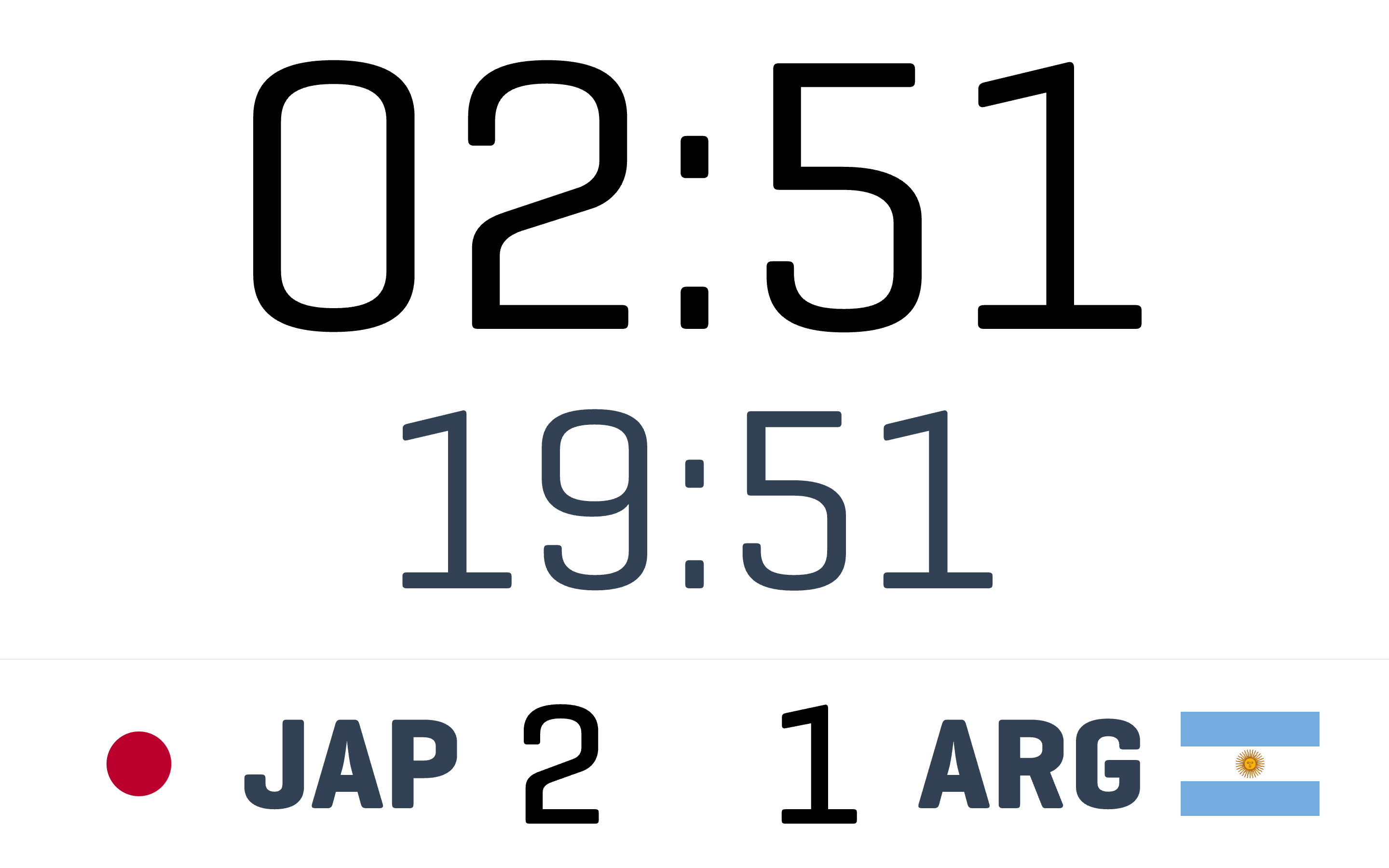
The full-screen display for that court fills the browser.
-
Use the camera button in the top left corner.
That switches to the overlay for the same court. The button is white on a white display, which is what makes it hard to find. Move the pointer over that corner and it shows.

-
Copy the address from the browser bar.
It is the court’s address with
/tvon the end. The page it opens is a compact panel with both teams, the score, the clock or sets, the division, and penalties. A penalty shows against the team. It shows against the player who took it when that team has a lineup, and lineups come with the Medium plan and up.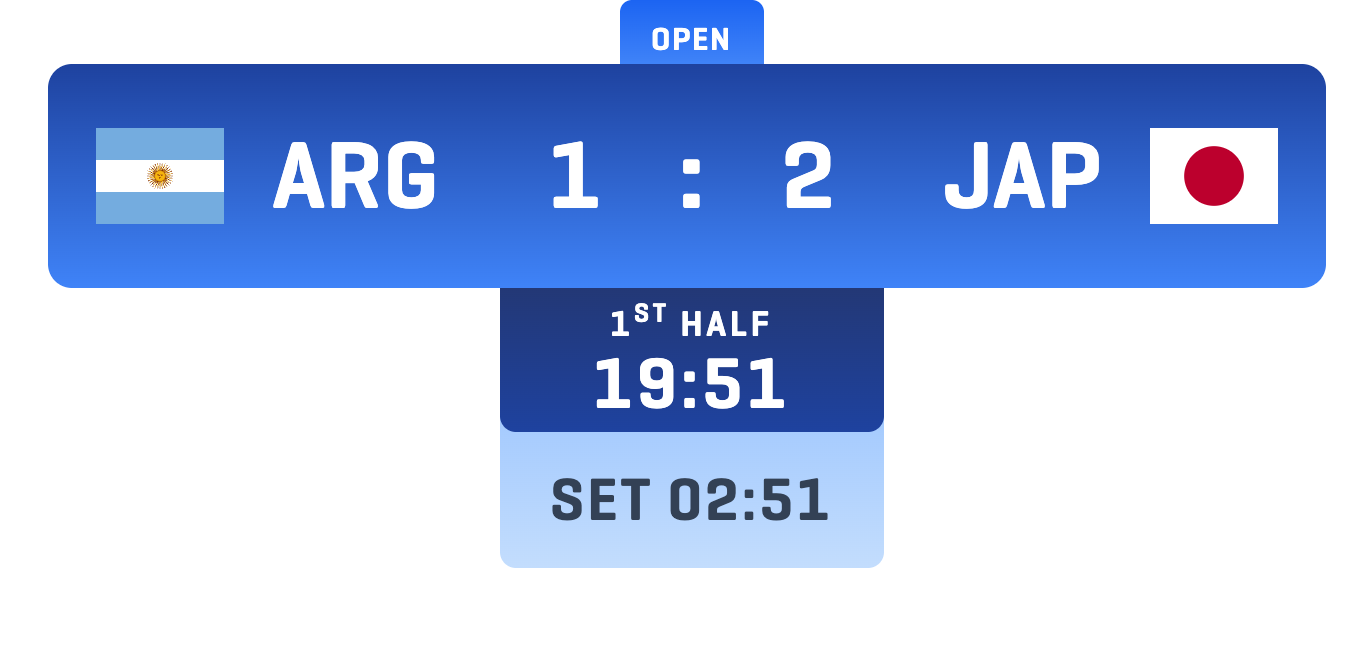
Add it to OBS
Section titled “Add it to OBS”-
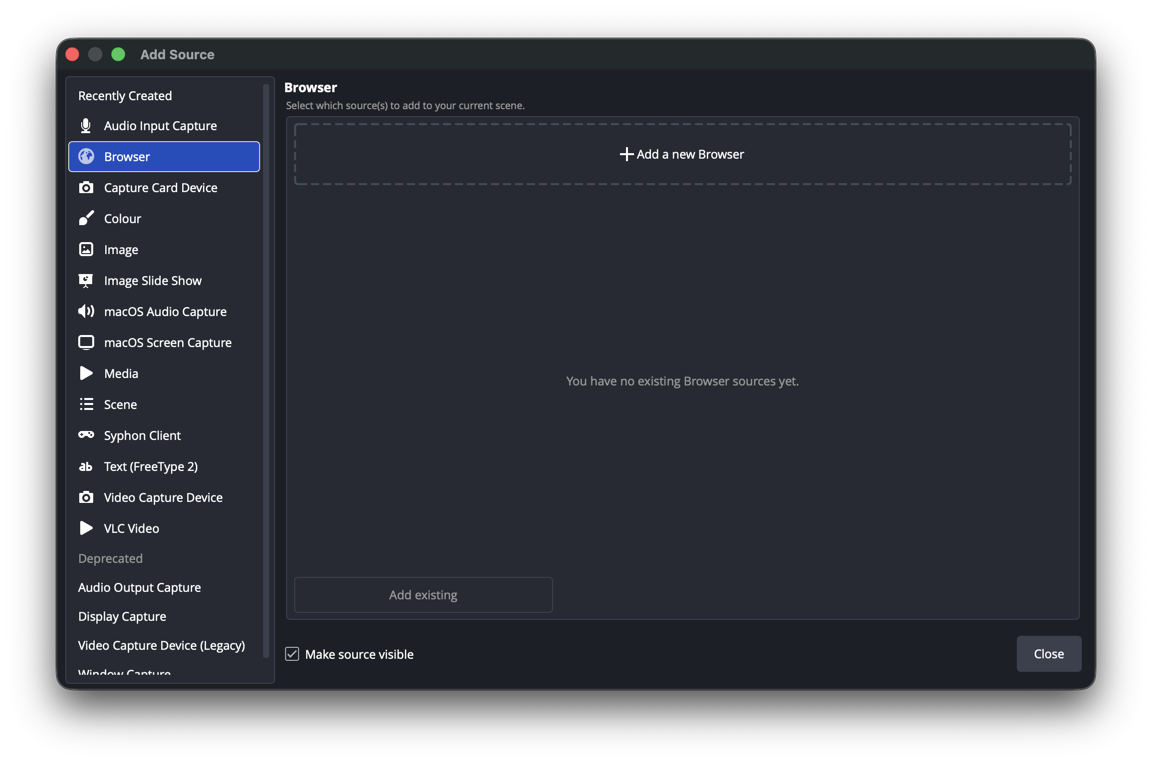
In Sources, click +, then Browser.
Name it after the court, so the Sources list stays readable when you are streaming more than one.
-
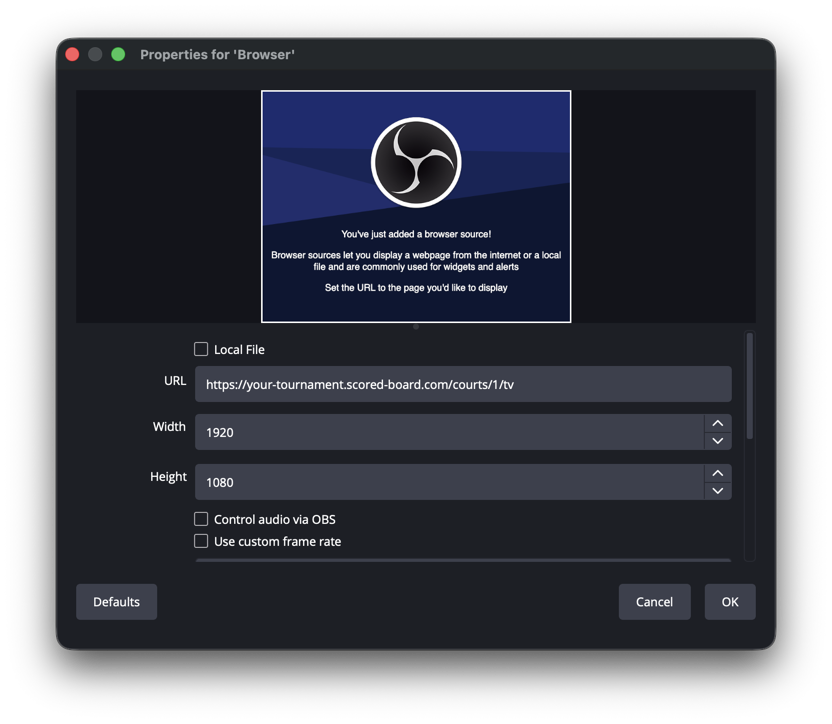
Paste the address into URL.
Leave the custom CSS box alone. The overlay brings its own styling.
-
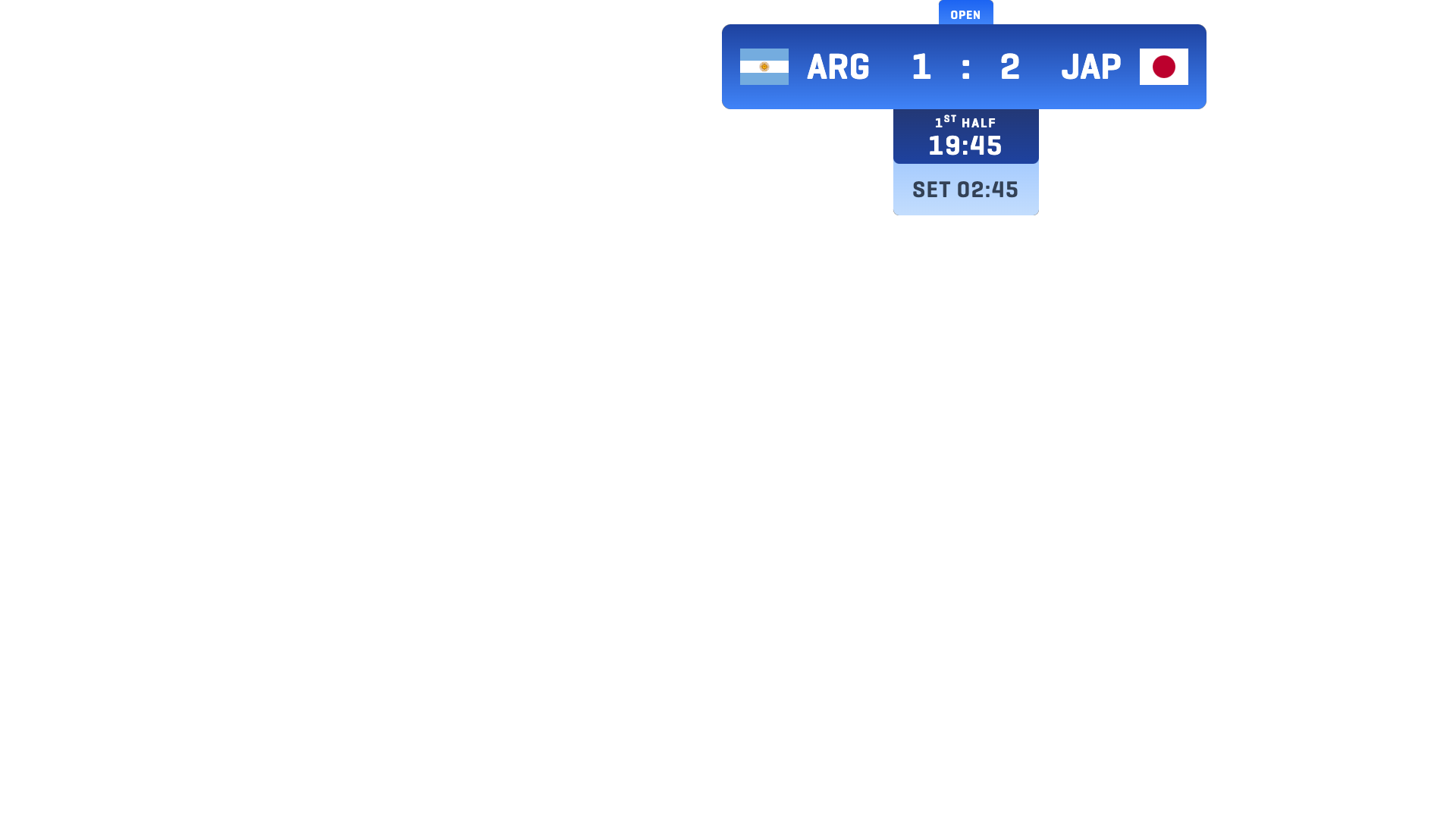
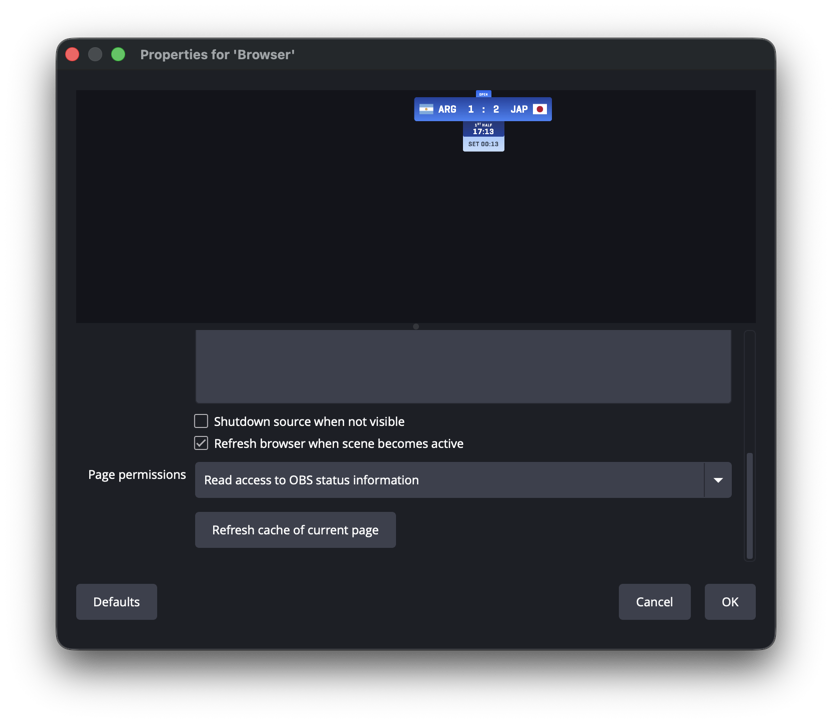
Set Width and Height to your canvas size.
For most streams that is 1920 by 1080. The panel draws itself at its own size inside that space rather than stretching to fill it, so give it room and crop afterward instead of scaling the whole page.
-
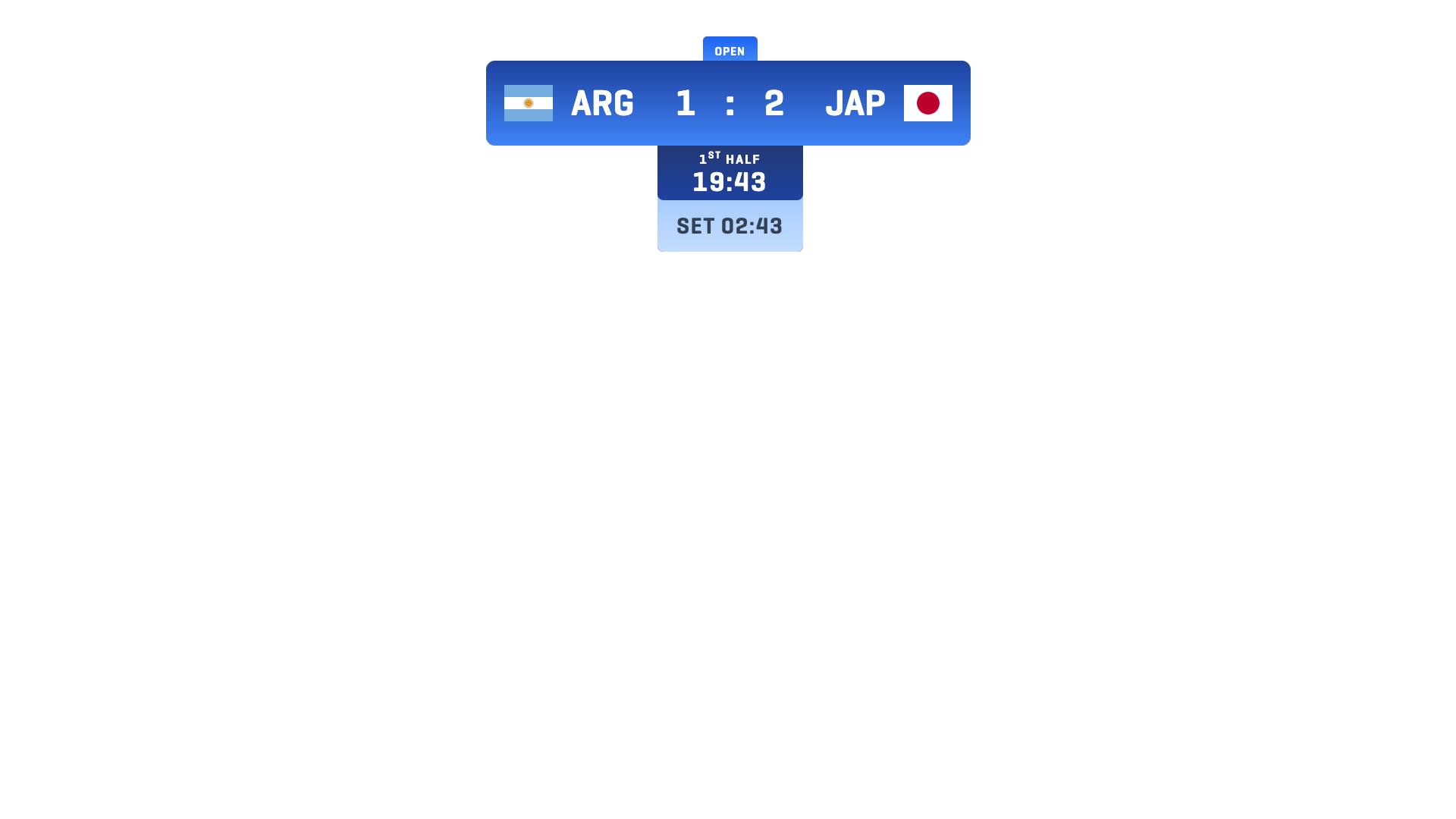
Crop to the panel and place it.
Hold Alt (Option on a Mac) and drag a handle to crop the empty area away, then drag the panel into your layout.
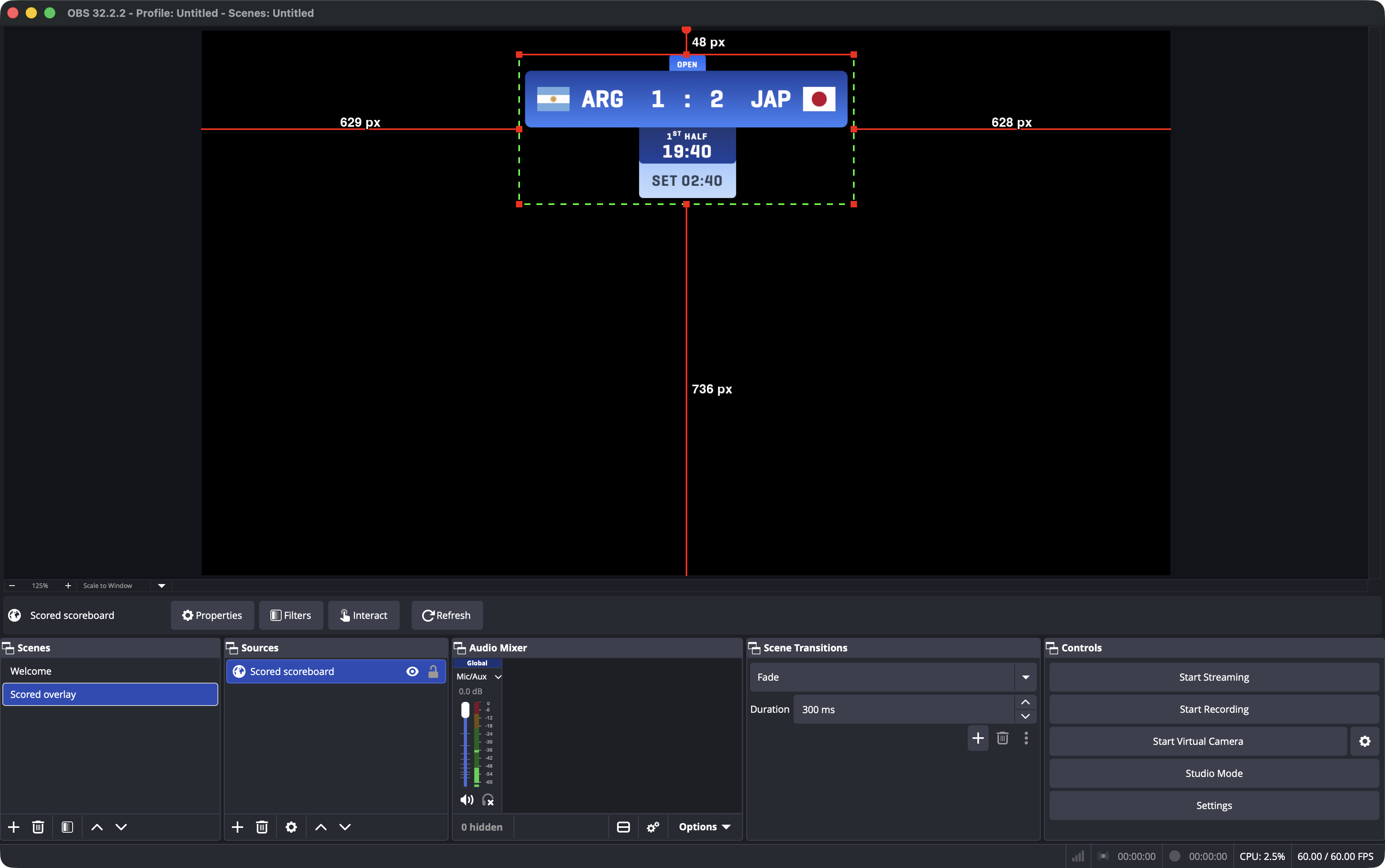
Set up, it looks like this in OBS.
Put the teams on the right side
Section titled “Put the teams on the right side”If your camera angle disagrees with the scoreboard, add ?mirror to the end of
the overlay address in OBS to swap which team sits on which side. The address
ends /tv?mirror instead of /tv.
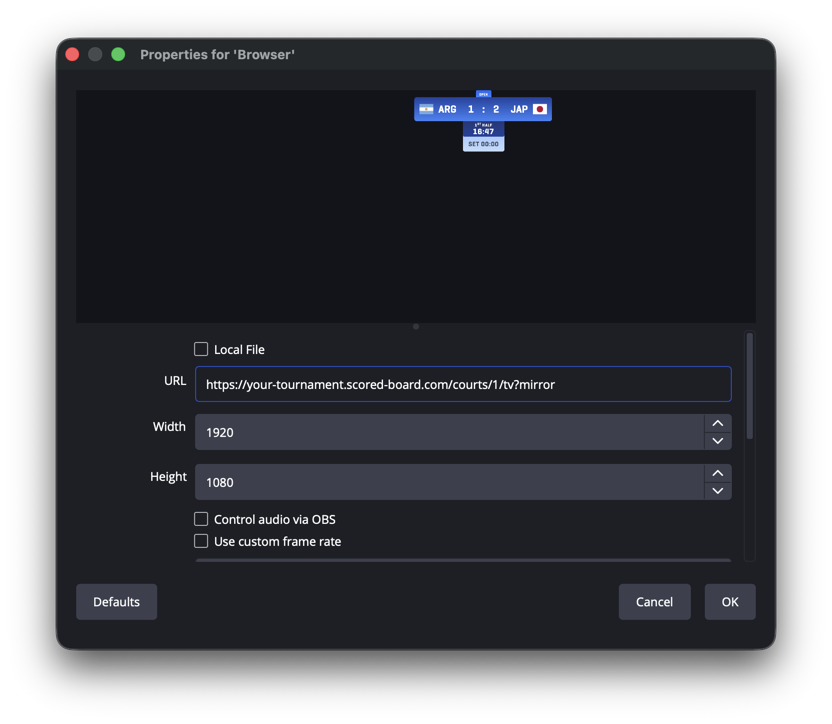
That changes the overlay only. The venue screen and the referee’s view stay as they are.
Check it before you go live
Section titled “Check it before you go live”Ask the referee to start the match, or start one yourself, and watch the panel in OBS. The teams, the score, and the clock or set tally update as the referee scores. When the panel moves with the court, the overlay is set up and you can leave it alone.
If the panel does not show
Section titled “If the panel does not show”- The source is empty. Almost always the address. Open it in a normal browser tab: if the page does not load there, it will not load in OBS either.
- The overlay shows nothing or a placeholder. It is working and waiting. It fills in when the referee starts the match on that court.
- It says the scoreboard is not part of the plan. The tournament is on Free. Plans & billing covers moving up.
- The panel looks stretched or soft. The source is being scaled rather than cropped. Reset the transform, set Width and Height back to your canvas size, and crop with Alt or Option instead.
- The score is not moving. Check the court. The overlay only shows what the referee is entering, so if nothing is being scored on the court’s control page, nothing changes on the stream. Running a match walks a referee through it.