Roster
The Roster tab holds your squad: who is in your delegation, and which of your teams each of them plays for. Setting it up before your first match is what makes naming a lineup quick on the day.
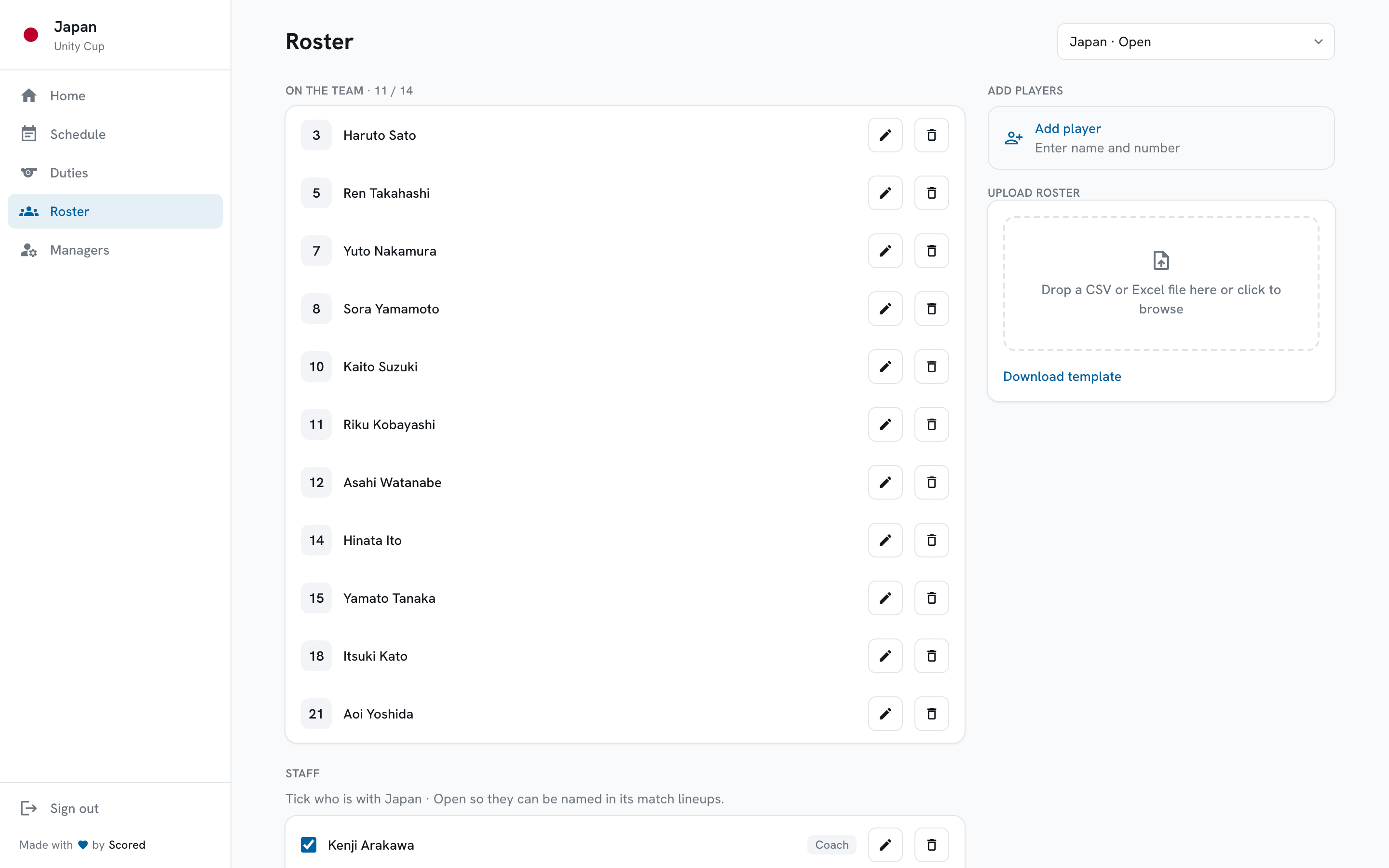
Players on the team
Section titled “Players on the team”The On the team list is your squad for the selected team, with each player’s shirt number on the left.
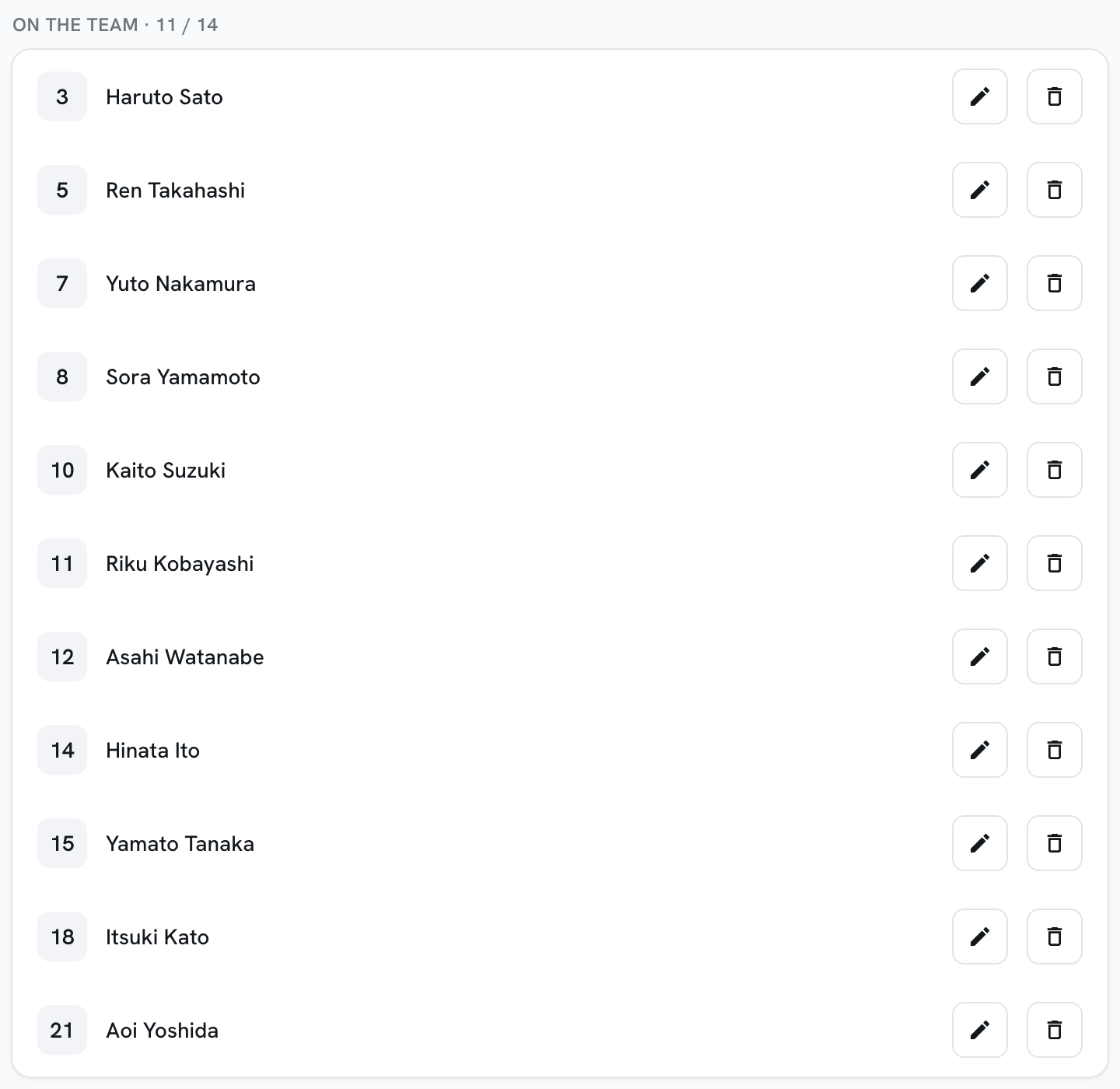
The count beside the heading - 11 / 14 - is how many players you have against
the maximum for this tournament. When you reach the maximum it turns amber and
the add controls are disabled until you remove someone.
Adding players
Section titled “Adding players”Tournaments handle this one of two ways. Look at your Add players panel to see which one you are in.
Some tournaments work from a list of players approved in advance. If yours does, you add someone by picking them from that list rather than typing their details in yourself.
-
Find the player in the Add players panel.
The list only shows players eligible for this team’s division. Anyone already on another team in the same division is hidden, because they cannot play for two teams in one division.
-
Tap Add.
If a shirt number is asked for, you will enter one now.
-
The player moves into On the team.
Most tournaments let you enter your own squad.
-
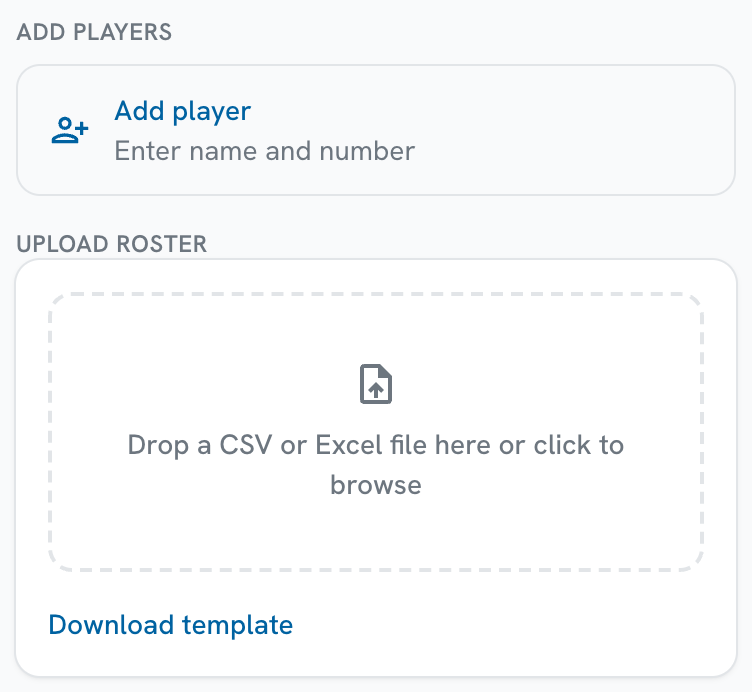
Tap Add player.
-
Enter the player’s name, and their number if the field is there.
Some tournaments need a shirt number for every player, some do not ask at all.
-
Save.
The player is created and put straight onto the selected team.
To enter a whole squad at once, use Upload a roster file instead.
Upload a roster file
Section titled “Upload a roster file”When you are entering your own players, you can import the whole squad from a spreadsheet instead of typing each one.
Your file needs one row per person and these columns:
| Column | What goes in it |
|---|---|
family_name |
The person’s family name |
given_name |
Their given name - leave blank for a single-name person |
number |
Their shirt number - leave blank if they have none |
kind |
player or staff |
staff_role |
For staff only, such as Head Coach |
Players and staff can go in the same file. Both CSV and Excel files work.
Your own column names work too. Download template gives you a file with these headings, but if your spreadsheet calls them something else, the portal asks you to match them up before it imports anything.
Shirt numbers
Section titled “Shirt numbers”To change a player’s number, tap the pencil beside their name and enter the new one. It updates everywhere at once - the roster list, your match lineups and the public tournament page.
Staff - coaches, physios, team managers - belong to the delegation as a whole rather than to one team, because the same physio usually covers all of them.

Add them once with Add staff, then tick the box beside anyone who is with your team.
Removing someone
Section titled “Removing someone”The bin icon beside a player takes them off your team. The bin beside a staff member removes them entirely.
Removing someone does not change lineups you have already submitted for matches that have been played - those stay as a record of who actually played.