Teams & delegations
Teams in the tournament sidebar is where you add everyone taking part. What the page looks like depends on how you have chosen to run teams.
Two ways to run teams
Section titled “Two ways to run teams”Every tournament runs one of two ways, and you pick which in Settings > Team management.
| Mode | What the Teams page shows |
|---|---|
| Team management on | Delegations, each with its own roster, teams and managers |
| Team management off | A flat list of teams, grouped by division |
A delegation is a club, a country or any group that brings more than one team. It holds the people once - players and staff - and its teams are picked from that pool. It is also who a team manager signs in as, so the manager who looks after a club’s first and second teams handles both in one place.
Turn it off and Scored keeps the simple version: teams and divisions, no rosters, no managers, no lineups.
The same page has Use preapproved players. Turn it on and only people you have added can go into teams and lineups - managers pick from your list rather than adding their own. Turn it off and managers add and edit their own people. It only applies when team management is on.
The Teams page
Section titled “The Teams page”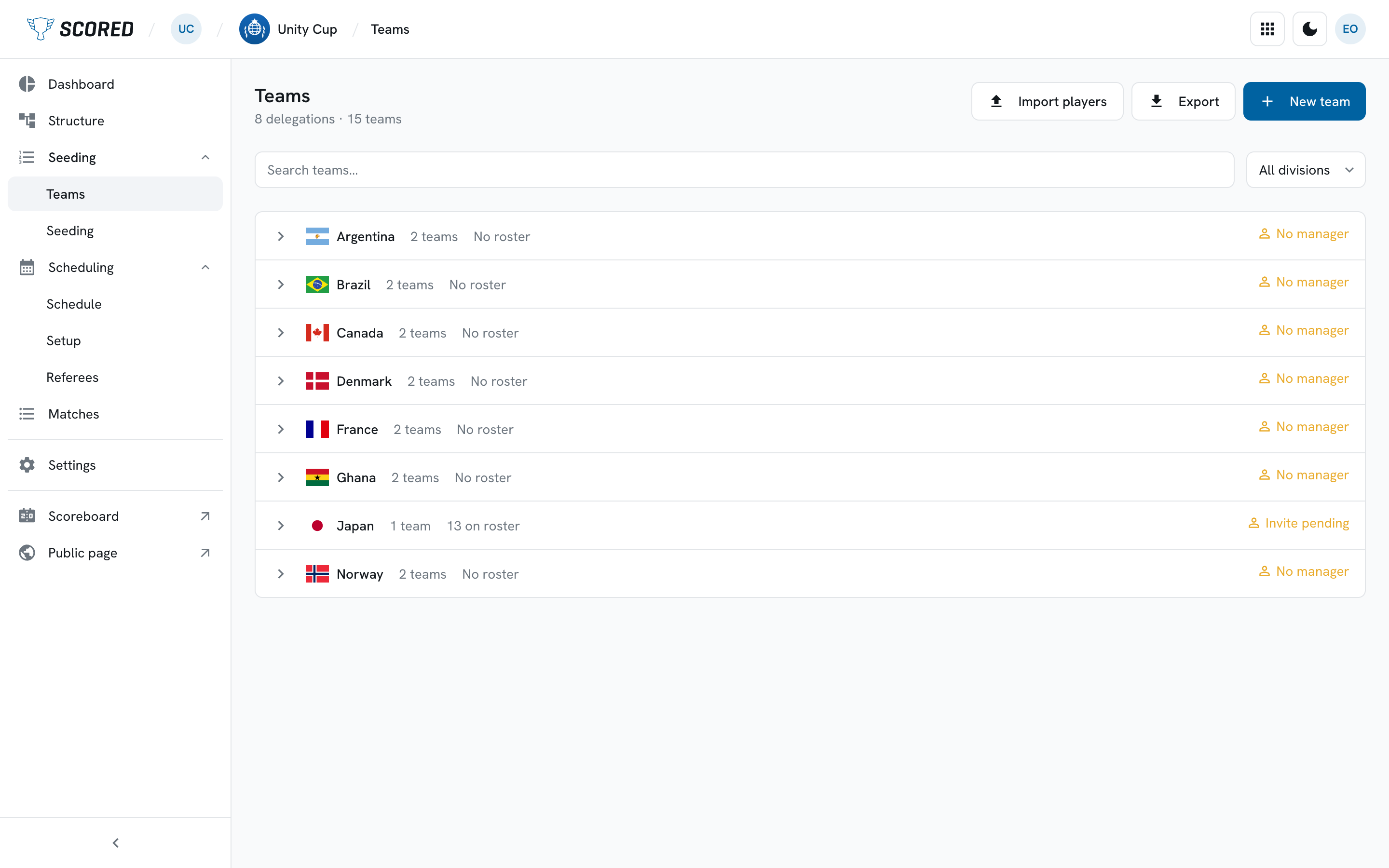
The line under the heading tells you the size of the field: “24 delegations · 47 teams” with team management on, “47 teams across 2 divisions” with it off.
Two controls narrow the list:
- Search teams matches a team name, and with team management on it also matches a delegation name.
- Filter by division picks one division. With team management on, choosing a division drops the delegation grouping and lists that division’s teams flat - which is the quickest way to see who is actually in a division.
With team management on, click the arrow beside a delegation to see its teams without leaving the page, or click its name to open it.
Every team row ends in a three-dot menu holding Edit, Delete team, and - with team management on - Move to delegation.
Each delegation row also shows how ready it is: how many teams it has, how many people are on its roster, and a manager note that reads No manager, Invite pending, or the number of managers it has. The first two are amber, because a delegation nobody manages will not submit a lineup.
Adding a team
Section titled “Adding a team”Teams belong to a division, so build your structure first. If you have no divisions yet, the page says so and sends you there.
-
Click New team.
-
Enter the team name.
-
Add a scoreboard name if you want one.
This is the short version shown on scoreboards. Leave it blank and Scored uses a short code from the team name.
-
Pick the division.
-
Choose a delegation. (Team management on only.)
Choice Use it when Existing delegation The club or country is already here New delegation They are new - type the name and it is created with the team Standalone team A one-team entry. Scored creates a one-team delegation behind the scenes -
Click Create team.
To move a team to another delegation later, open the team and pick Move to delegation from the three-dot menu beside Edit.
When you run out of team slots
Section titled “When you run out of team slots”Every plan holds a number of teams: 8 on Free, 32 on Small, 64 on Medium, and no limit on Large. Once you have used them all, a note appears at the top of the Teams page and inside the New team dialog telling you how many slots you have used and offering the upgrade. If your role cannot start an upgrade the same note appears without the button, asking you to talk to an organization admin.
Nothing you have already created is affected. You just cannot add the next team until the plan has room.
Editing a team
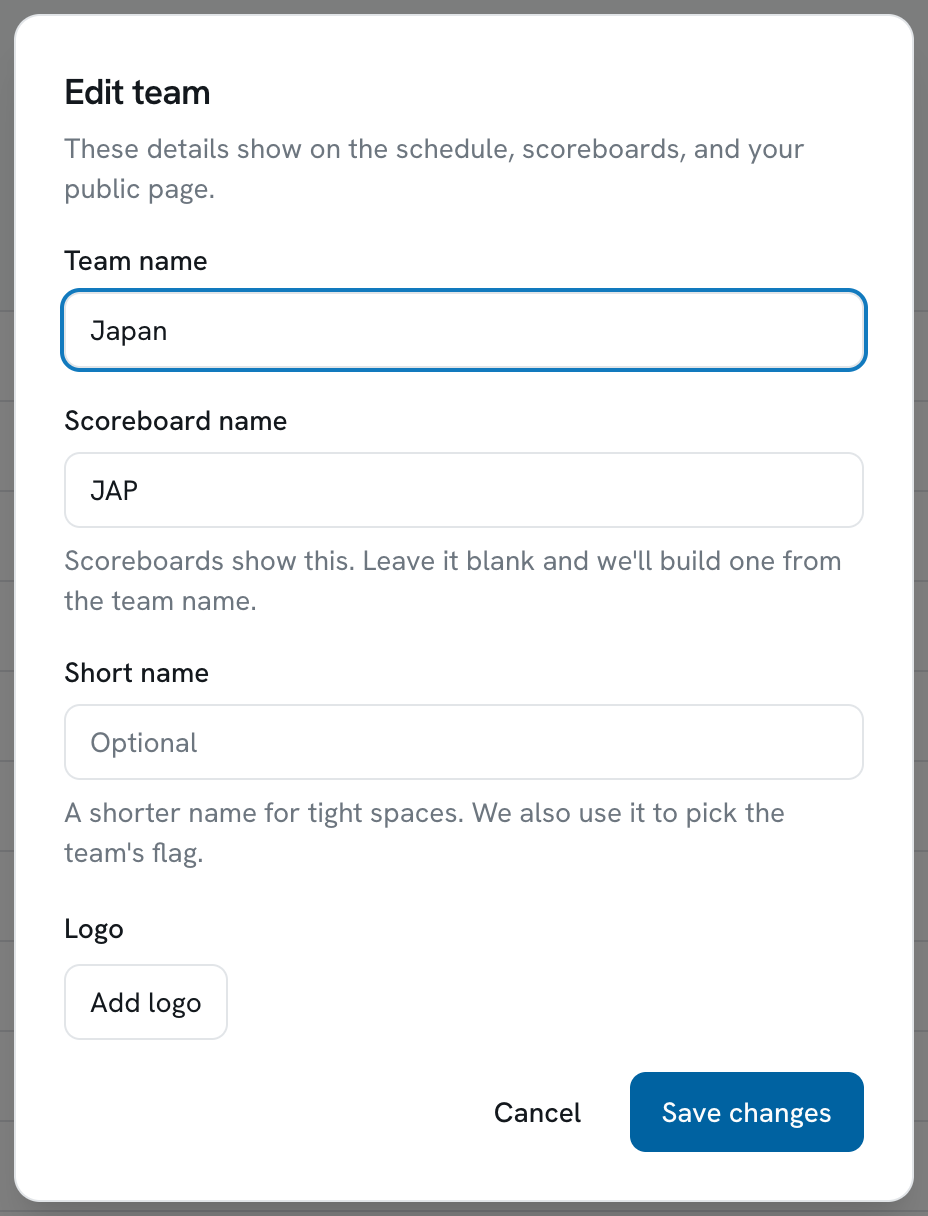
Section titled “Editing a team”Click a team’s name to open it, then click Edit. The same dialog opens from Edit in the three-dot menu on any team row.
| Field | What it is for |
|---|---|
| Team name | The name everyone sees - on the schedule, on scoreboards, and on your public page |
| Scoreboard name | The short version scoreboards show. Leave it blank and Scored builds one from the team name |
| Short name | An optional shorter name for tight spaces. Scored also uses it to pick the team’s flag |
| Logo | The team’s own logo - see Logos below |
Nothing changes until you click Save changes, the logo included.
Deleting a team
Section titled “Deleting a team”Delete team sits in the three-dot menu beside Edit on a team’s page, and in the three-dot menu on each row of the Teams page.
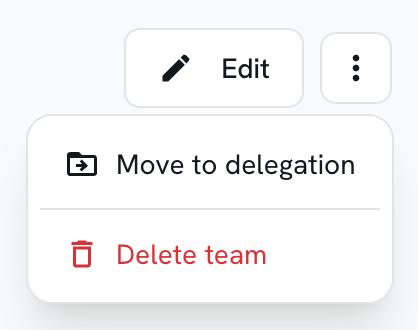
Deleting takes the team away for good, along with the roster assignments on it. The people stay on the delegation’s roster, so you can put them on another team.
You cannot delete a team that is in a match, whether it is playing or on assistant-referee duty. Scored tells you how many matches it is in and asks you to take it out of those first.
Teams and delegations both take a logo, and the control is the same in Edit team and Edit delegation.
-
Click Add logo and choose a file.
-
Frame it in the square - drag the image, and use the slider to zoom.
-
Click Use photo.
-
Click Save changes. Nothing is uploaded until you do.
PNG, JPEG and WebP files work, up to 2 MB each. Logos are square, so a wide badge is cropped rather than squeezed.
Once there is a logo, Add logo reads Replace logo and Remove logo appears beside it. Removing also waits for Save changes, and Keep logo takes it back until then.
A team with no logo of its own shows its delegation’s logo instead, everywhere the team appears: the schedule, scoreboards, your public page, and the Team Manager portal. Give the team its own logo when it should look different from its delegation.
When neither the team nor its delegation has a logo, you see a flag if the name is a country, and the initials if it is not. The short name is what picks the flag if the full name does not name a country on its own.
Importing from a spreadsheet
Section titled “Importing from a spreadsheet”You can bring your teams in from a file instead of adding them one at a time, and with team management on you can fill every delegation’s roster the same way.
Import your teams and players has the plans, the columns your file needs, the steps, and what happens to the rows that do not go through.
Exporting
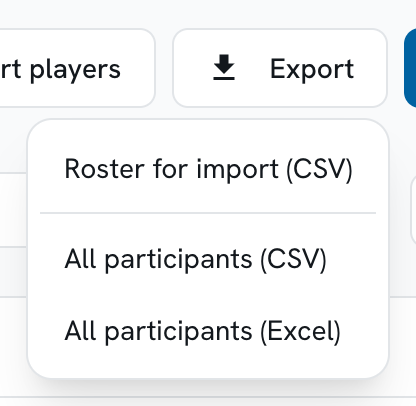
Section titled “Exporting”Export, beside Import players, offers three files:
| File | What it is for |
|---|---|
| Roster for import (CSV) | The same columns as the import, so an exported file can go straight back in |
| All participants (CSV) | Everyone you have, with their delegation, team, division and how many matches they have played |
| All participants (Excel) | The same sheet, for a spreadsheet app |
The two All participants files come with the Small plan. Below it they stay in the menu with a lock beside them and take you to the upgrade instead of downloading. Export is a laptop and tablet control - it is not on the phone layout.
Inside a delegation
Section titled “Inside a delegation”Click a delegation’s name to open it.
Edit at the top of the page opens Edit delegation, where you change its name and its logo. Both show everywhere the delegation appears, including your public page.
The rest of the page is three tabs.
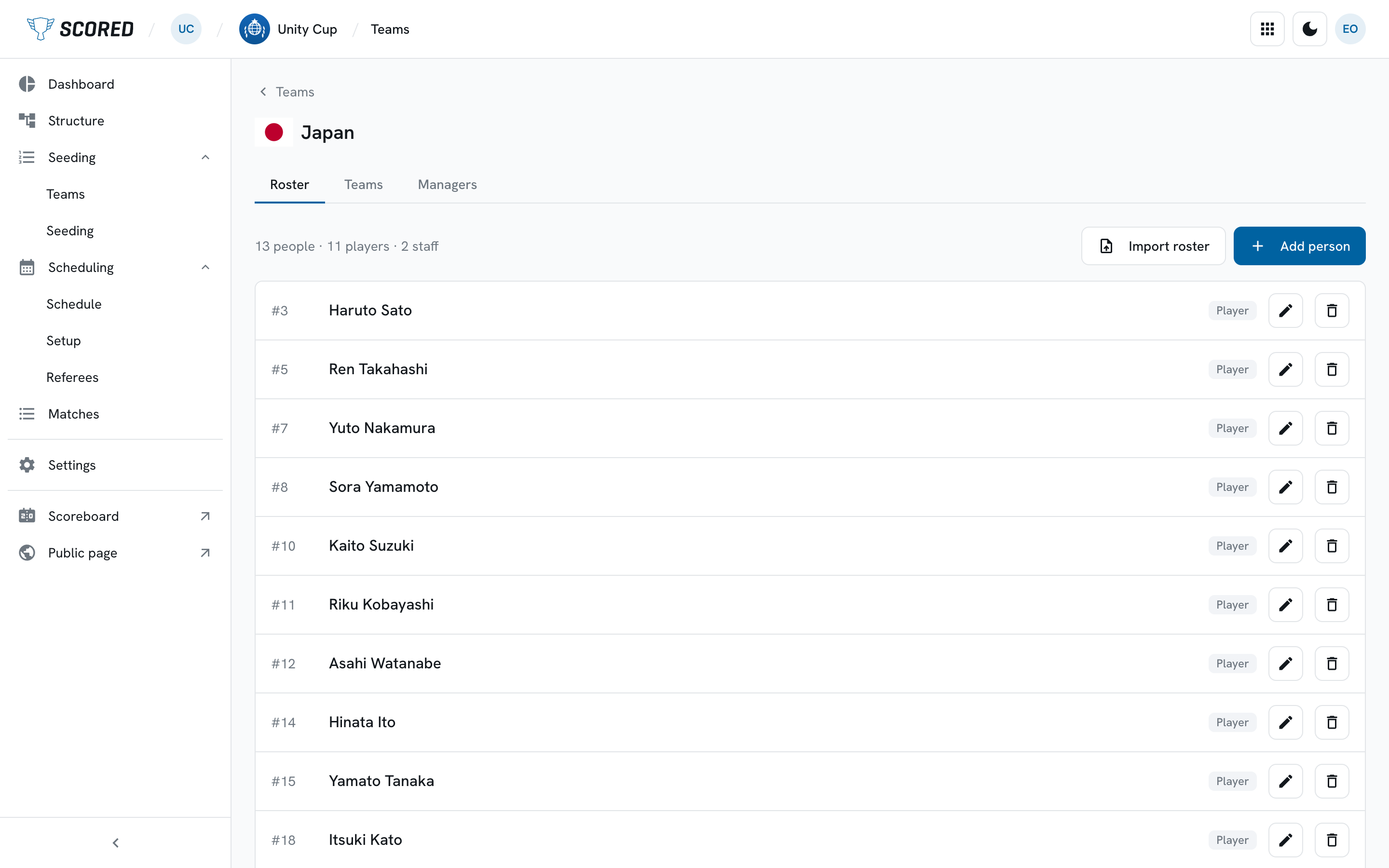
Everyone in the delegation - players and staff - with their numbers and any eligibility labels. The line above the list counts them: “18 people · 15 players · 3 staff”.
Add person adds one at a time. Import roster takes a spreadsheet for
this delegation alone, with the same columns as the tournament-wide import minus
delegation.
The pencil beside someone edits them. The bin removes them from the delegation and from every team they were on.
Each of the delegation’s teams, with the people assigned to it.
Pick someone from Add a person and click Add. The picker only offers people eligible for that team’s division: the division’s allowed labels are listed above it, and anyone who does not carry them is hidden behind a “Show N ineligible hidden” link. Staff are always eligible.
Click a person’s number to give them a different shirt number for this team. Leave it blank and they go back to their roster number.
The people who run this delegation from the Team Manager portal, with their invite status.
Inviting a team manager
Section titled “Inviting a team manager”A team manager runs their own delegation: they build the roster, name lineups, and confirm results. Inviting one is how you stop doing that work yourself.
-
Open the delegation and go to the Managers tab.
-
Enter their email address.
-
Choose which teams they see, if the delegation has more than one.
This sets what appears in their portal. It is not a permission: any manager of a delegation can still act on all of it, including changing this. Leave it alone and they see every team.
-
Click Invite.
They get an invite email pointing at the portal at
[your-slug].scored-page.com/manage. Until they sign in, their row reads
Invite pending; after that it reads Active.
You can invite as many managers per delegation as you like - a club with a first-team and a second-team coach usually wants two. The pencil beside a manager changes which teams they see, and the remove icon takes their access away.
Managers can also invite their own colleagues, so you usually only need to invite the first one per delegation.